How-to guide · how to insert a workstation block in autocad
How to insert a workstation block in AutoCAD
By Saumyajit Maity · Published 9 Nov 2024 · Updated 4 Apr 2026
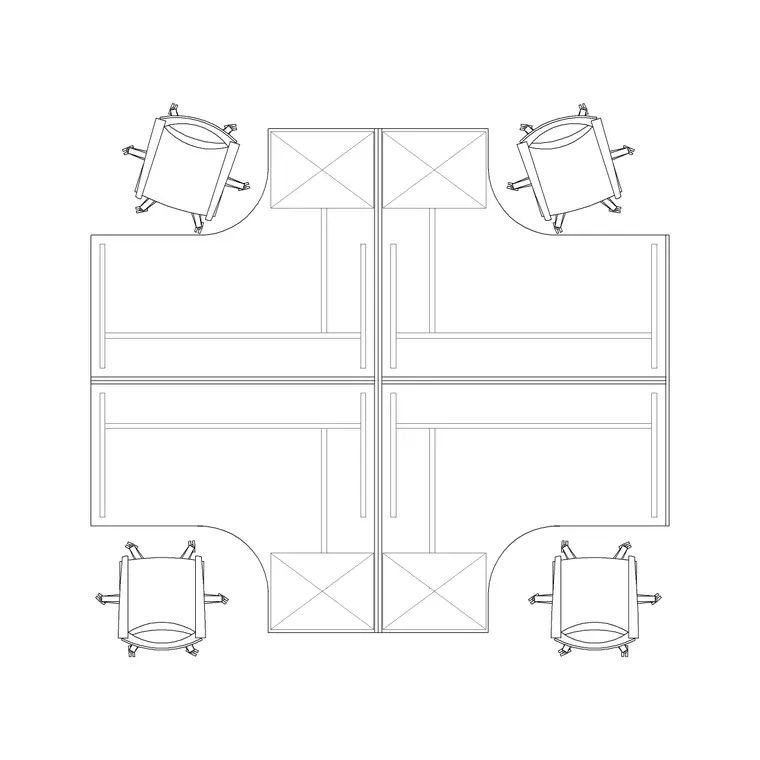
A workstation block is the workhorse of office space planning. Unlike a single desk, a multi-person workstation — a 2P, 4P or larger cluster — carries the desks, the dividing screens, the cable spine and sometimes the chairs all in one drawing, so inserting it is really about placing a whole work neighbourhood, not a single object. That makes alignment and spacing the heart of the job.
This guide covers inserting a workstation CAD block in AutoCAD and then repeating it across a floor plate to hit a target headcount. Workstations almost always go in plan view because the entire point of the block is the top-down arrangement of desks, so we will work in plan throughout. The principles — match units, insert once, align to the planning grid, then array — hold whether you are placing a four-person bench or a forty-person open-plan floor.
We will use a four-person workstation as the worked example. The same routine scales straight up to bigger clusters; only the spacing module and the circulation gaps change.
Download the right cluster size
Workstation blocks come sized by headcount — two-person, four-person, six-person and up — and as back-to-back benches or facing pairs. Pick the cluster that matches the bench module your layout is built on rather than placing a four-person block and trying to chop it down to three. Starting from the right cluster keeps every desk on the same module, which is what makes a big floor plate tile cleanly.
Save the DWG into your project's furniture library so the same workstation is reused everywhere on the floor. Consistency across clusters is half of what makes an office plan look professional.
Confirm units and drawing scale
Office furniture is drawn full size in millimetres in this library, so set your insertion units to millimetres with the UNITS command before inserting. A workstation that arrives at the wrong scale throws off every clearance you are trying to check — desk depth, screen height, the gap to the next bench.
Because a workstation is a large block, a units error is glaring: a four-person cluster that should span a few metres will either fill the whole floor plate or shrink to a speck. Catch it on the first insert, not after you have arrayed twenty of them.
Insert the first cluster
Run INSERT, browse to the workstation DWG, and place it with a corner of the bench on a known grid intersection — the insertion base point is usually a clean corner of the cluster for exactly this reason. Drop one cluster, then step back and check it against the building grid and the nearest circulation route.
Resist the urge to array immediately. Get one workstation sitting correctly relative to the structural grid and the aisle, and every copy after it inherits that good alignment. A cluster placed off-grid multiplies its error across the whole floor when you array it.
Align the cluster to the planning grid
Offices are planned on a grid — the structural column grid and a finer furniture-planning grid sitting inside it. Use ROTATE so the bench runs parallel to the column lines, and snap a corner of the cluster to a grid node so the desks read as a deliberate, ordered layout rather than a scatter.
Align the cluster so the cable spine or back-to-back screen sits where the floor boxes and power are — servicing the desks is a real constraint, not an afterthought. Getting the first cluster onto the grid and onto the power is the move that makes the rest of the floor fall into place.
Array workstations to hit a headcount
Once one cluster is right, ARRAY it across the floor plate. Set the column spacing to the cluster width plus the side circulation gap, and the row spacing to the cluster depth plus the aisle between rows. The spacing module — not the desk size — is what determines how many people the floor holds.
Leave realistic aisles: a primary circulation route through the middle, secondary aisles between rows wide enough to pass behind a seated person. Trim the array back where it meets a core, a meeting room or a structural column. The headcount you can fit is the number of clusters that survive after you respect the circulation and the structure, not the raw array count.
Layer and clean up the floor
Put the workstations on a dedicated furniture layer, separate from partitions, walls and services, so you can plot a furniture-free architectural shell or a furniture-only plan on demand. If the block includes chairs and screens on their own sub-layers, keep that structure — it lets you show the floor with or without seating for different drawing sets.
Finally, sweep the floor for clusters that overlap a column or block a fire exit. Space planning lives or dies on circulation and egress, so a final pass to clear the structure and the escape routes is non-negotiable before the plan goes out.
Free download
Browse the full library — DWG & DXF, no signup.
Questions
Frequently asked
How do I array workstations across an office floor in AutoCAD?+
Insert and align one cluster to the planning grid, then use ARRAY with the column spacing set to the cluster width plus the circulation gap and the row spacing set to the cluster depth plus the aisle. Trim the array where it meets cores, meeting rooms or columns.
What units should a workstation block be inserted at?+
Millimetres. The office furniture in this library is drawn full size in millimetres, so set your drawing's insertion units to millimetres with the UNITS command before inserting, or the cluster will arrive badly out of scale.
Should I use a 4-person workstation or single desks?+
Use a multi-person workstation cluster when you are planning a bench-based open-plan floor, because the block carries the desks, screens and cable spine on one consistent module that tiles cleanly. Use single desks for cellular offices or irregular spaces where each desk is placed individually.
How do I keep workstations aligned to the building grid?+
Rotate the first cluster so the bench runs parallel to the column lines, then snap a clean corner of the cluster to a grid node before arraying. Every copy inherits that alignment, so getting the first one on-grid keeps the whole floor ordered.
Related downloads
Blocks for this guide
Popular blocks to download
Related categories
Related guides
How-to guide
How to Create a Block in AutoCAD (BLOCK & WBLOCK)
Learn how to create a block in AutoCAD with the BLOCK and WBLOCK commands — pick a base point, choose objects, set units, and save a reusable DWG block library.
How-to guide
How to Edit a Block in AutoCAD (BEDIT)
Edit a block in AutoCAD with BEDIT — open the Block Editor, change the geometry, save, and update every inserted instance at once. Tips and pitfalls.
How-to guide
How to Explode a Block in AutoCAD (EXPLODE)
How to explode a block in AutoCAD with EXPLODE — break a block into editable lines, handle nested blocks, and use BURST to keep attributes.