How-to guide · how to insert a window block in autocad
How to insert a window block in AutoCAD
By Sumana Kumar · Published 7 Feb 2023 · Updated 4 Mar 2026
A window block is two related drawings: a plan symbol that shows the glazing line cutting through the wall, and an elevation that shows the frame, the opening lights and how the window divides up. On a floor plan the window has to read at a glance as a window — not a gap, not a door — and on the elevation it has to show the frame proportions and which sashes open. This guide covers inserting both so a single opening is consistent across the drawing set.
Unlike a door, a window doesn't sit on the floor — it floats between a sill and a head height, so the elevation and section placement depend on those levels. We'll cut the opening, place the plan symbol, then drop the matching elevation at the right sill height, and finish with the layering that lets you isolate glazing from the rest of the envelope.
Cut the opening and note sill and head
A window needs an opening just like a door. On plan, OFFSET the jamb positions from a reference, then TRIM or BREAK the wall faces to clear the opening at the window width. Before you move on, decide the sill height and head height: domestic window sills commonly sit around 900 mm above floor (lower for full-height glazing, higher for kitchens above worktops at roughly 1050 to 1100 mm), with heads often aligned to the door head at about 2100 mm.
These levels don't affect the plan symbol — which simply shows the glazing crossing the wall — but they're essential the moment you draw the elevation or a section, so note them now.
Insert the plan symbol into the opening
Confirm UNITS reads Millimeters, run INSERT, and browse to the window DWG's plan view. A window plan symbol is typically three or four parallel lines representing the inner and outer wall faces plus the glazing line(s) between them. The block's base point usually sits at one jamb so it snaps to the cut opening.
Snap the base point to a jamb and let the symbol bridge the opening. The glazing line should read clearly between the wall faces — that thin central line is what tells a reader 'window' rather than 'door' or 'gap'. For a bay or bow window, the plan block angles the glazing out from the wall; align it to the projection you've drawn.
Place the elevation at the correct sill height
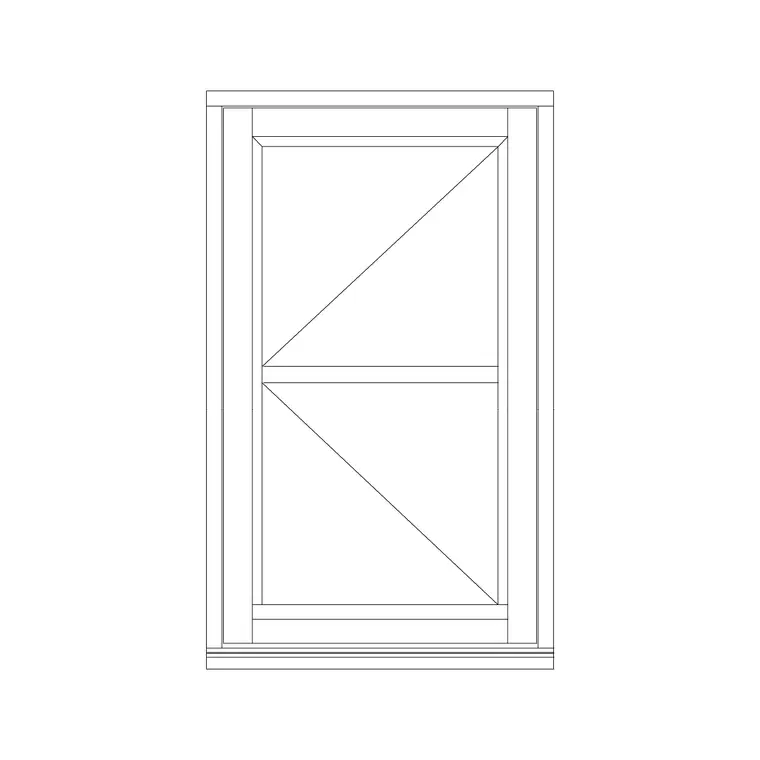
Switch to the elevation drawing and insert the window elevation block. This is where the sill and head heights you noted come in: the bottom of the frame sits at the sill level above the floor line, and the top reaches the head. Most window elevation blocks have their base point at a bottom corner, so you can snap to a point set at the sill height and let the frame rise to the head.
The elevation shows the frame, transoms and mullions, and which sashes open — a casement swings out, a sash slides vertically, an awning hinges at the top. If the block includes opening indication (dashed lines showing the hinge side of an opening light), keep it; it tells the reader how the window operates.
Match window type to the room
Pick the window type to suit the room and orientation. A casement (side-hung, opening outward) is the everyday choice and ventilates well. A top-hung awning window opens even in light rain, useful for bathrooms and kitchens. A sliding sash suits traditional facades and rooms where an outward swing would be obstructed. A fixed light brings in daylight where ventilation isn't needed, like a stair or a feature wall.
Drop the matching block in each opening so the elevation honestly shows how each window works. Mixing types deliberately — a fixed picture window flanked by opening casements, say — is common, and the blocks make it quick to assemble.
Layer, schedule and keep it clean
Put windows on a glazing or openings layer (A-GLAZ or A-WIND, depending on your standard) so the glass and frame carry their own colour and lineweight, separate from the walls. A dedicated layer lets you produce a clean structural plan by freezing glazing, or a full elevation by thawing it.
If your set runs a window schedule, give each window an attribute reference (W01, W02…) on insertion so it extracts automatically. Keep each window as a block reference rather than exploded lines: a later change to the frame profile or the opening indication then updates everywhere from one edit to the definition.
Common window-insertion mistakes
The first slip is treating a window like a door and placing the elevation at floor level — windows float between sill and head, so always set the bottom of the elevation frame to the sill height above the floor line. The second is a units mismatch that arrives as a tiny or giant window; the fix is INSUNITS set to millimetres, not manual scaling.
A third is inconsistency between plan and elevation: a window shown 1500 mm wide on plan but drawn 1200 mm in elevation confuses the contractor and breaks the schedule. Insert the matching plan and elevation from the same family and keep the widths in step. Finally, don't leave the glazing on the wall layer — if you can't toggle the glass off, you can't produce a clean masonry-only plan.
Free download
Browse the full library — DWG & DXF, no signup.
Questions
Frequently asked
At what height do I place a window in elevation?+
Set the bottom of the window frame at the sill height above the floor line — commonly around 900 mm for domestic rooms, roughly 1050 to 1100 mm above kitchen worktops, and lower for full-height glazing. The head often aligns with the door head at about 2100 mm.
What does a window look like on a floor plan?+
A window plan symbol is usually three or four parallel lines: the inner and outer wall faces with the glazing line(s) between them. That thin central glazing line is what distinguishes a window from a door or a plain opening on the plan.
How do I keep plan and elevation windows consistent?+
Insert the matching plan and elevation blocks from the same window family and keep the widths identical. Give each window a schedule reference attribute so plan, elevation and schedule all agree. Inconsistent widths between views confuse contractors and break the window schedule.
Which window type should I choose?+
Casements (side-hung) are the everyday default; top-hung awning windows suit bathrooms and kitchens; sliding sash windows suit traditional facades or where an outward swing is blocked; fixed lights bring daylight where ventilation isn't needed. Drop the matching block into each opening.
Related downloads
Blocks for this guide
Popular blocks to download
Related categories
Related guides
How-to guide
How to Draw a Window in Plan and Elevation
Draw a window in plan and elevation in AutoCAD — the in-wall glass-line symbol, then the matching face-on frame and opening. Step-by-step, free DWG block.
Explainer
DWG vs DXF: Complete Guide to CAD File Formats in 2026
DWG vs DXF explained — what each CAD format is, how they differ, which to use, file size and compatibility, and how to convert between them in AutoCAD.
Curated pack
15 Free Door CAD Blocks — Plan & Elevation DWG in 2026
Download 15 free door CAD blocks in DWG and DXF — single, double, sliding, bifold and pocket doors with swing arcs, in plan and elevation. No signup.