How-to guide · how to insert a stool block in autocad
How to insert a stool block in AutoCAD
By Sumana Kumar · Published 24 Jun 2026 · Updated 28 Jun 2026
A stool is a small block with an outsized influence on how a kitchen, bar or cafe plan reads. Bar stools at an island, counter stools at a breakfast bar, low stools tucked under a console — each one signals how the space is actually used, so getting them in at the right size and spacing matters more than the block's modest footprint suggests.
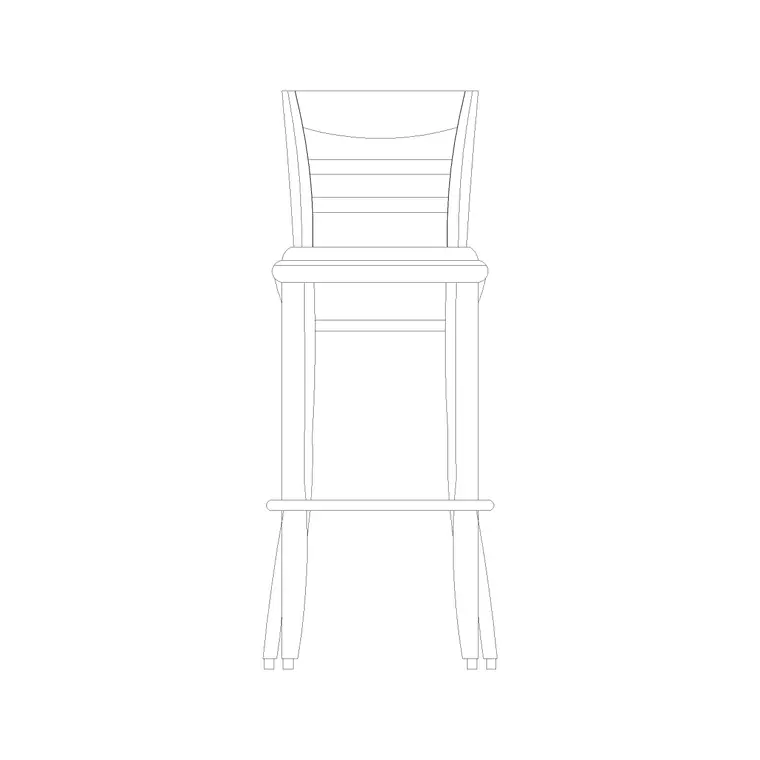
This guide walks through inserting a stool CAD block in AutoCAD, from picking the right view to spacing a run of stools evenly along a counter edge. Stools come in plan view (a circle or rounded square seen from above) and in elevation or side view (the seat-and-leg profile you would drop into an interior elevation), and the two are not interchangeable, so the first decision is which one your drawing needs.
We will use a wooden bar stool as the worked example, but the same INSERT routine applies to counter stools, swivel stools and backless stools alike. The differences are in size and spacing, not in the mechanics of placing the block.
Pick the right view for the job
Furniture-layout plans want a plan-view stool — the top-down outline that sits cleanly under the overhang of an island or counter. Interior elevations and bar details want a side-view or front-elevation stool that shows the seat height, the leg profile and any footrest. Reach for the wrong one and your stool will look correct on screen but wrong on the printed sheet.
If you only have one view downloaded and you need the other, it is faster to grab the matching block than to fake a plan from an elevation. Most stool blocks in a good library ship both views as separate drawings for exactly this reason.
Check units before you insert
Stools are small, so a units mismatch is easy to miss at first glance and disastrous once you zoom in. The blocks here are drawn full size in millimetres. Type UNITS and confirm your drawing's insertion units are millimetres so the stool lands at real-world size instead of arriving 1000 times too large or too small.
A quick sanity check: a typical bar stool seat reads somewhere in the rough range of a few hundred millimetres across in plan. If your inserted stool spans several metres or shrinks to a dot, the units do not agree — stop and fix that before placing anything.
Run INSERT and drop the first stool
Type INSERT (or use the Blocks palette), browse to the stool DWG, and pick its insertion base point — usually the centre of the seat for a plan stool, which makes it easy to centre on a counter overhang. Place the first stool where you want the run to begin, set its rotation, and confirm.
Drop one stool first and judge it against the counter before you commit to a whole row. It is far easier to nudge a single block into the right relationship with the worktop edge than to re-space six of them after the fact.
Space a run of stools evenly
Stools rarely come singly — they march along a counter, so even spacing is what makes the run read well. Place the first stool, then COPY or ARRAY it along the counter at a consistent centre-to-centre spacing that leaves enough elbow room between seats. A rectangular array along the counter line, or a simple COPY with a measured displacement, both work.
Keep the stools set back so the seat sits under the overhang, not crashing into the cabinet face below. Aligning all the seat centres to a single line parallel to the counter keeps the row tidy; an associative array makes it trivial to add or remove a stool later if the counter length changes.
Rotate stools to face the bar
A stool at an island usually faces the working side; a stool at a wall-mounted bar faces the wall. Use ROTATE, or set the rotation as you insert, so each seat orients toward the counter it serves. For a swivel or round stool the rotation is cosmetic, but for a stool with a clear front — a back, an armrest, a directional seat — facing matters.
If the stools sit around a curved counter, rotate each one to point at the counter's local tangent rather than leaving them all parallel, or the run will look stiff and wrong against the curve.
Put stools on the right layer
Drop stools onto your furniture layer so they print at the correct lineweight and can be frozen for a clean architectural-only plot. Keep them off the wall or fixture layers — a stool is loose furniture, not built-in joinery, and mixing the two makes later edits painful.
If your office separates fixed and loose furniture, a stool belongs with the loose set. That distinction pays off when a client asks to see the room with and without the seating, because you can toggle one layer instead of hunting down individual blocks.
Tips and common pitfalls
- Watch the overhang: a stool needs counter overhang above it to tuck under, so check the worktop detail before you space a tight row. - Do not stretch one stool to imply a bigger one. Bar, counter and dining stool heights differ for a reason; pick the block that matches the counter height you are drawing. - Mind the footrest: in elevation, the footrest rail is a real clearance against the cabinet kick — keep it visible, not buried. - Group a finished run into a single block or a named selection if you reuse the same bar layout across several drawings, so you can place the whole set at once.
Free download
Browse the full library — DWG & DXF, no signup.
Questions
Frequently asked
What size is a stool block in AutoCAD?+
The blocks here are drawn full size in millimetres, so a stool lands at its real-world footprint when your insertion units are set to millimetres. Bar, counter and dining stools differ in height, so pick the block that matches the counter height in your drawing rather than scaling one to fit.
How do I space bar stools evenly along a counter?+
Place the first stool, then use ARRAY or COPY along the counter line at a consistent centre-to-centre spacing that leaves comfortable elbow room between seats. An associative rectangular array lets you add or remove a stool later if the counter length changes.
Should I use a plan or elevation stool block?+
Use a plan-view stool for furniture-layout drawings, where you see the seat from above tucked under the counter overhang. Use a side-view or front-elevation stool for interior elevations and bar details, where the seat height and leg profile need to show.
My stool block came in far too big — why?+
Almost always a units mismatch. The blocks are drawn in millimetres; if your drawing's insertion units are set to metres or inches, the stool arrives wildly out of scale. Type UNITS, set insertion units to millimetres, and re-insert.
Related downloads
Blocks for this guide
Popular blocks to download
Related categories
Related guides
How-to guide
How to Edit a Block in AutoCAD (BEDIT)
Edit a block in AutoCAD with BEDIT — open the Block Editor, change the geometry, save, and update every inserted instance at once. Tips and pitfalls.
How-to guide
How to Explode a Block in AutoCAD (EXPLODE)
How to explode a block in AutoCAD with EXPLODE — break a block into editable lines, handle nested blocks, and use BURST to keep attributes.
How-to guide
How to Rename a Block in AutoCAD (RENAME)
How to rename a block in AutoCAD with RENAME — change a block's name without breaking its references, fix imported names, and apply a convention.