How-to guide · how to insert a sofa block in autocad
How to insert a sofa block in AutoCAD
By Sumana Kumar · Published 18 Oct 2023 · Updated 7 Feb 2026
A sofa is the anchor of almost every living-room plan, so it is usually the first piece of furniture a drafter drops onto a residential layout. Getting it in cleanly — at the right size, against the right wall, on the right layer — sets the rhythm for everything else in the room. This guide walks through inserting a sofa CAD block in AutoCAD from the moment you download the DWG to the moment it sits correctly in your plan.
Sofas are a good block to practice the INSERT workflow on because they are large, so a units mistake is immediately obvious, and because their placement is governed by real clearances — the coffee-table gap in front, the walkway behind, the throw of the TV opposite. We will use a plan-view sofa as the worked example, but the same steps apply to a side-view sofa you might drop into an interior elevation.
Step 1 — Download a sofa block that matches your view
Decide first whether you need a plan-view sofa (seen from above, for the furniture layout) or an elevation/side-view sofa (seen face-on, for an interior elevation). Most living-room work happens in plan, so grab the plan block unless you are drawing a wall elevation. Two-seaters, three-seaters and L-shaped sectionals each have their own footprint, so pick the size your room actually calls for rather than stretching one to fit.
Save the DWG into a project library folder so the block is reusable across drawings. Note the drawing units — the blocks here are drawn full size in millimetres, which is what makes them land at real-world size when your template agrees.
Step 2 — Confirm your insertion units
Before you place anything large, check that your drawing's insertion units match the block. Type UNITS, and in the dialog set 'Insertion scale' to Millimeters if you are on a millimetre template. With INSUNITS set correctly, AutoCAD rescales the sofa automatically if its units differ from the drawing's, which stops a three-seater arriving the size of a postage stamp or a parking bay.
If your drawing is Unitless, AutoCAD will insert the sofa at its raw geometry size and you will have to scale by hand in a later step — so it is worth fixing the units now.
Step 3 — Run INSERT and place the sofa
Type INSERT (or I) and press Enter to open the Blocks palette, click 'Browse', and select your saved sofa DWG. Leave the insertion point set to 'Specify On-screen' so you can position it by clicking. Pick a sensible base point on screen — for a sofa the back-left corner or the centre of the seat both work well, depending on how the block was authored.
Click to drop the sofa roughly where it belongs, usually with its back to a wall. It lands as a single block reference, so you can move, copy and rotate the whole sofa as one object rather than wrestling with loose lines.
Step 4 — Rotate and align to the room
A freshly inserted sofa rarely faces the right way. Use the ROTATE command, pick the sofa, set the base point at a corner that touches the wall, and spin it to sit flush. For a sofa against an angled wall, type the exact rotation angle rather than eyeballing it. The MOVE command with object snaps then lets you slide the back edge tight to the wall line using a perpendicular or nearest snap.
For an L-shaped or facing-pair arrangement, MIRROR is your friend: place one sofa, then mirror it across the room centreline to create a matching seat on the opposite side without re-inserting.
Step 5 — Set the layer and check clearances
Move the sofa onto a dedicated furniture layer (something like A-FURN) via the Properties palette, so you can freeze all the furniture for a clean structural plan and thaw it for the furnished version. Giving seating its own colour and lineweight also makes the plan far easier to read.
Now do the spacing check the block makes easy. Leave roughly 400–450 mm between the sofa front and a coffee table so people can reach a drink without barking their shins, and keep a walkway of at least 600–900 mm behind or beside the sofa where a route passes. Because the block is drawn to true size — a two-seater around 1400–1600 mm wide, a three-seater around 1900–2300 mm, both about 850–950 mm deep — these gaps are something you measure on screen, not guess.
Tips and common pitfalls
The classic mistake is the units mismatch from Step 2: if the sofa arrives microscopic or enormous, fix INSUNITS rather than scaling by hand, which corrupts the dimensions. A second trap is leaving the sofa on layer 0 mixed in with the walls, so you can't toggle furniture independently. A third is forgetting the depth — designers often nail the width but push a 950 mm-deep sofa against a wall and then can't fit the walkway behind it.
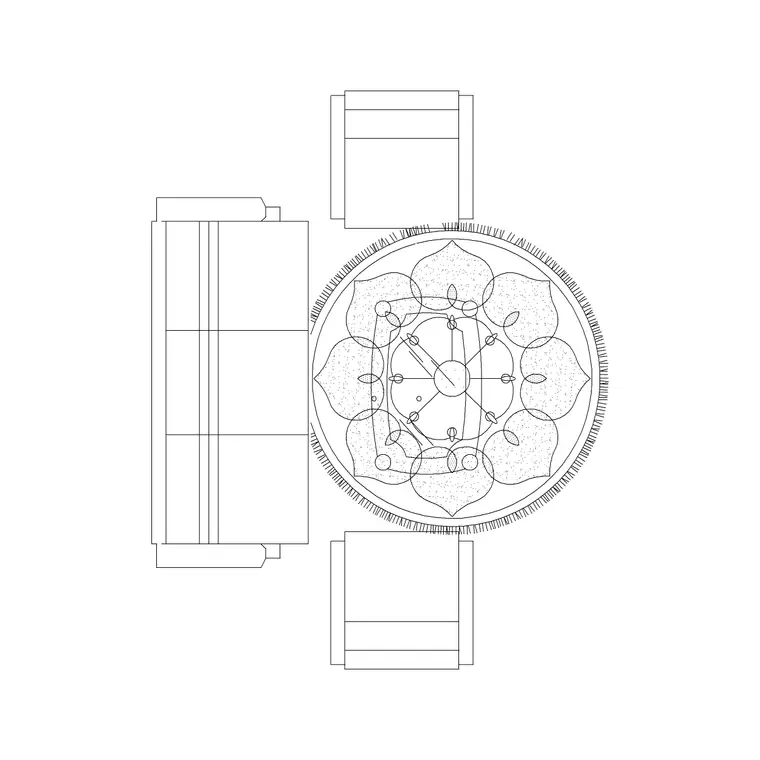
If you regularly drop a sofa with a coffee table and a rug as a set, build the arrangement once and WBLOCK it as a single 'living room' unit. Then a whole seating zone inserts in one click, and a later edit in the Block Editor updates every room that uses it.
Free download
Browse the full library — DWG & DXF, no signup.
Questions
Frequently asked
Why does my sofa block come in far too big or too small?+
That is an insertion-units mismatch. The sofa and your drawing are using different units. Type UNITS, set Insertion scale to Millimeters to match the block, then re-insert. With INSUNITS set correctly AutoCAD rescales the sofa automatically.
Should I use a plan or elevation sofa block?+
Use a plan-view sofa for furniture layouts and floor plans — it is the footprint seen from above. Use an elevation or side-view sofa when you are drawing an interior wall elevation or a section through the living room.
How much clearance should I leave around a sofa?+
Allow about 400–450 mm between the sofa front and a coffee table, and 600–900 mm for any walkway behind or beside it. Because the block is drawn to true size you can measure these gaps directly on the plan.
Can I insert a two-seater and a three-seater from the same workflow?+
Yes. The INSERT steps are identical for any sofa size — only the footprint differs. Pick the block whose width suits the room (roughly 1400–1600 mm for a two-seater, 1900–2300 mm for a three-seater) rather than stretching one to fit.
Related downloads
Blocks for this guide

Popular blocks to download
Related categories
Related guides
How-to guide
How to Insert a TV Unit Block in AutoCAD
Insert a TV unit block in AutoCAD: place the console flush to the wall, align it with the sofa, check viewing distance, and draw the screen in elevation.
How-to guide
How to Insert a Rug Block in AutoCAD (Plan View)
Insert a rug block in AutoCAD: place the area rug in plan beneath the furniture, set it on a finishes layer below the seating, and size it to anchor the zone.
How-to guide
How to Insert a Bookshelf Block in AutoCAD
Insert a bookshelf block in AutoCAD: place the bookcase flush to the wall in plan, show the shelves in elevation, and stretch the unit to fill the run.