How-to guide · how to insert a bookshelf block in autocad
How to insert a bookshelf block in AutoCAD
By Sumana Kumar · Published 16 Mar 2026 · Updated 10 Apr 2026
A bookshelf is a shallow, tall block that lives against a wall, and like a wardrobe it reads in two complementary ways: a thin footprint in plan and a fully-shelved face in elevation. The plan tells you it fits the wall and clears the door; the elevation — the one clients and joiners actually study — shows the shelf spacing, the run length and how the books and objects sit. This guide covers inserting a bookshelf block in AutoCAD in both views and stretching it to fill a study or living-room wall.
We will use a freestanding or fitted bookcase against a wall as the worked example. Because a bookshelf is narrow front-to-back but visually busy face-on, the elevation is where most of the effort goes.
Step 1 — Choose freestanding or fitted, and the right depth
Decide whether the bookshelf is a freestanding bookcase (a fixed unit you place as furniture) or a fitted run that fills an alcove or wall and is stretched to length. Then respect the depth: most bookshelves are shallow, around 250–350 mm deep, because that suits books and ornaments while keeping the unit tight to the wall. Library and display shelving can be deeper.
Shelf spacing in elevation usually runs around 300–350 mm clear for standard books, with a taller bay at the bottom for larger volumes. Pick the block whose proportions suit the brief, and save the DWG to your library — it is drawn full size in millimetres.
Step 2 — Set units and place the footprint in plan
Confirm UNITS is Millimeters for the insertion scale. Run INSERT, browse to the bookshelf DWG, and place the plan footprint with the insertion point on 'Specify On-screen'. A back corner is the handiest base point because a bookshelf sits with its back to the wall.
MOVE the unit so its back edge is flush to the wall line, and ROTATE it to the wall angle if needed. In plan the bookshelf is a shallow rectangle, often with the shelf lines or a hatch indicated — it arrives as one block reference you can position in a single move.
Step 3 — Show the shelves in elevation
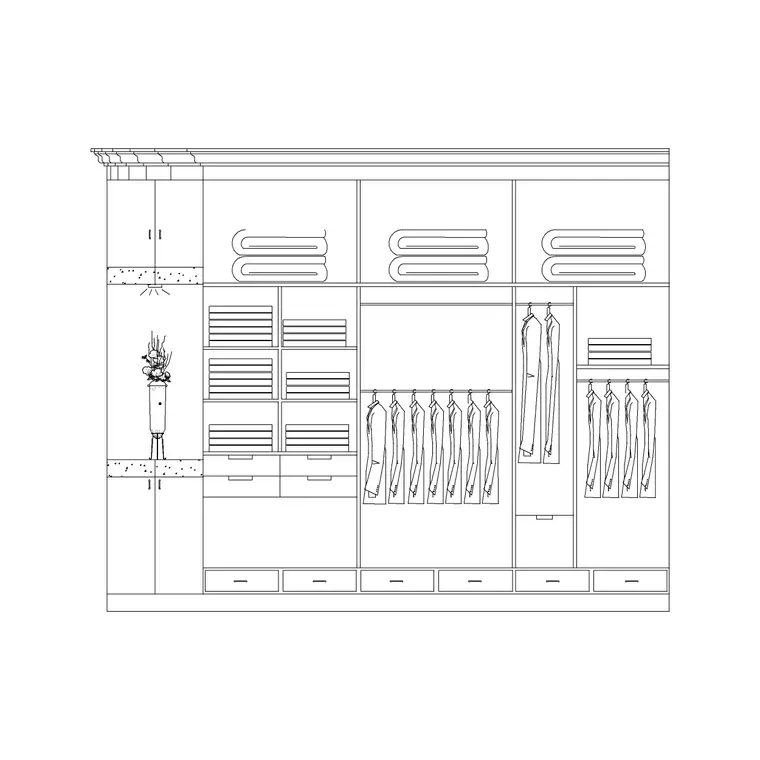
Switch to the elevation block for the drawing people actually read. Insert it aligned to the same wall and ground line as your interior elevation, with the base at floor level. The elevation shows the carcass, the horizontal shelves at their real spacing, and often some indicative books or objects to give scale and warmth. Those indicative books are worth keeping, because an empty shelved box reads as a cabinet, while a few spines tell the viewer immediately that the unit is a bookcase.
Check the top of the unit against any picture rail, window head or ceiling line, and make sure the bottom shelf clears the skirting. A tall bookcase that runs past the window head on the elevation is a clash you want to catch here rather than on site. Because the block is drawn to real height, the shelf positions and the overall height read correctly straight away, and you can dimension the shelf pitch directly off the elevation for the joiner.
Step 4 — Stretch the bookshelf to fill the wall
A fitted bookcase usually has to grow to the available wall or alcove width. If it is a static block, use STRETCH: window the side that should move and drag it to the wall, then redistribute the vertical dividers so each bay stays a sensible width — an over-wide shelf would sag in reality and looks wrong on the drawing. If it is a dynamic block with a width parameter, pull the grip and let the bays adjust.
For a tall library wall, you may also array a single bay horizontally to build a long run cleanly, rather than stretching one carcass to an unrealistic span.
Step 5 — Layer the unit and coordinate the room
Put the plan footprint on the furniture layer and the elevation on the joinery/elevation layer so each drawing reads cleanly and freezing the furniture for a structural plan doesn't kill your elevation. Then coordinate: a bookshelf shouldn't foul a door swing or a radiator, and a tall unit near a window shouldn't block the light or the opening.
Keep the unit as a block reference so it can be scheduled, and if the same bookcase recurs — a run of identical offices or a hotel lounge — WBLOCK the resolved unit and array it from one definition so an edit updates them all.
Tips and pitfalls for bookshelf blocks
The most common mistake is treating a bookshelf like a deep cabinet — at 250–350 mm it is shallow, and drawing it too deep eats floor space and looks clumsy. Respect the depth. The second is stretching the carcass but leaving the shelves and dividers unadjusted, producing impossibly wide bays; redistribute the dividers after any stretch.
A third is forgetting to coordinate the elevation with the room's features — a bookcase that runs straight through a window or radiator on the elevation hasn't been checked against the plan. And keep plan and elevation on coordinated layers so the two views stay in step as the design changes.
Free download
Browse the full library — DWG & DXF, no signup.
Questions
Frequently asked
How deep should a bookshelf block be?+
Most bookshelves are drawn around 250–350 mm deep, which suits books and ornaments while keeping the unit tight to the wall. Drawing it deeper than that wastes floor space and looks clumsy on the plan.
What shelf spacing should a bookcase elevation show?+
Around 300–350 mm clear between shelves works for standard books, often with a taller bay at the bottom for larger volumes. The elevation block is drawn to real height, so the spacing reads correctly straight away.
How do I make a fitted bookcase fill the wall?+
Use STRETCH on a static block to extend the carcass to the wall, then redistribute the vertical dividers so each bay stays a sensible width. On a dynamic block with a width parameter, just pull the grip and let the bays adjust.
Does a bookshelf block include both plan and elevation?+
Many do. The plan gives the shallow footprint for the layout, and the elevation shows the shelves at their real spacing for the joinery or presentation drawing. Keep the two views on coordinated layers so they stay in step.
Related downloads
Blocks for this guide
Popular blocks to download
Related categories
Related guides
How-to guide
How to Insert a Sofa Block in AutoCAD (Step by Step)
Insert a sofa block in AutoCAD the right way: download the DWG, match units, run INSERT, place it against the wall, rotate to the room, and set the layer.
How-to guide
How to Insert a TV Unit Block in AutoCAD
Insert a TV unit block in AutoCAD: place the console flush to the wall, align it with the sofa, check viewing distance, and draw the screen in elevation.
How-to guide
How to Insert a Rug Block in AutoCAD (Plan View)
Insert a rug block in AutoCAD: place the area rug in plan beneath the furniture, set it on a finishes layer below the seating, and size it to anchor the zone.