How-to guide · how to insert a rug block in autocad
How to insert a rug block in AutoCAD
By Sumana Kumar · Published 15 Jul 2023 · Updated 2 Jun 2026
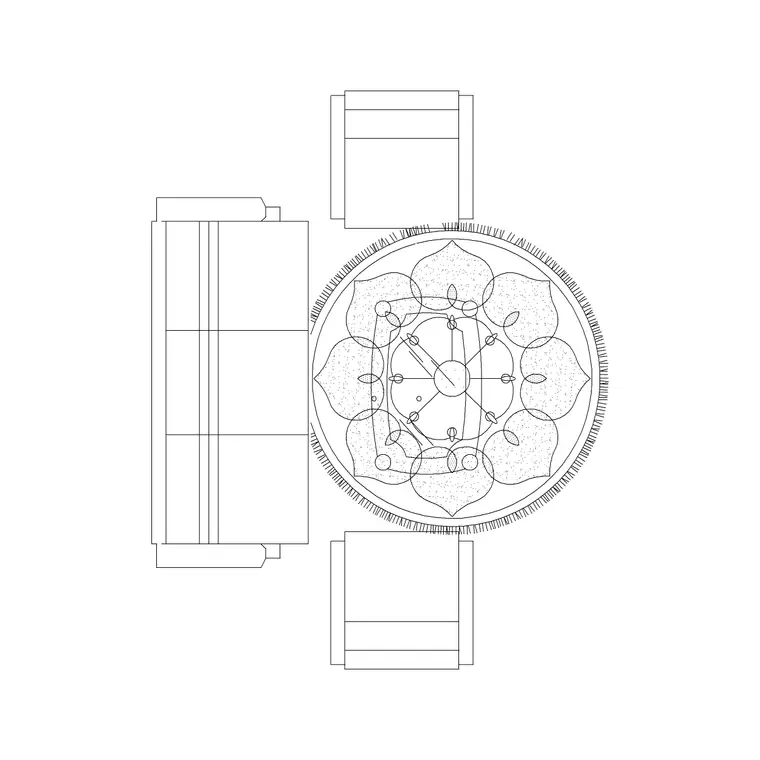
A rug is a flat, plan-view block whose whole job is to anchor a zone — it tells the eye where the seating group, the dining set or the bed belongs, and it warms up an otherwise hard floor plan. Because it lies under the furniture, the trick to inserting a rug well is layer order and sizing: it has to sit beneath the sofa and tables, and it has to be big enough to gather the furniture together rather than floating like a stamp. This guide covers inserting a rug block in AutoCAD and getting it to read as the foundation of a room.
We will use an area rug under a living-room seating group as the worked example. Rugs are almost always a plan element — you rarely draw one in elevation — so we will focus on placement, sizing and draw order.
Step 1 — Pick a rug shape and rough size
Rugs come rectangular, round and runner-shaped, and the size depends on what they anchor. As a guide, a living-room rug under a seating group is commonly around 1700 × 2400 mm or 2000 × 3000 mm so the front legs of the sofas can sit on it; a dining rug should extend about 600 mm beyond the table on every side so chairs stay on it when pulled out; a runner suits a hallway or the side of a bed.
Choose the block whose shape fits the zone. Many rug blocks come as a hatched or patterned outline that reads as fabric. Save the DWG to your library; it is drawn full size in millimetres.
Step 2 — Set units and insert the rug
Confirm UNITS is Millimeters for the insertion scale so the rug lands at real size. Run INSERT, browse to the rug DWG, and place it with the insertion point on 'Specify On-screen'. The centre or a corner of the rug makes a convenient base point.
Drop the rug roughly in the zone it serves — under the seating group or the dining table. It comes in as a single block reference, so the outline and any pattern hatch move together. Don't worry about exact position yet; you'll align it to the furniture next.
Step 3 — Centre the rug under the furniture
A rug should centre on the arrangement it anchors. MOVE it so its centre lines up with the centre of the seating group, the dining table, or the bed, using midpoint or centre snaps. For a living-room rug, position it so at least the front legs of the sofas land on it — a rug that the furniture entirely misses looks marooned. For a dining rug, check the ~600 mm overhang so pulled-out chairs stay on the fabric.
ROTATE the rug to align with the furniture axis if the room sits on an angle. Because everything is drawn to scale, the overhang and coverage are something you read off the plan directly.
Step 4 — Get the draw order right
This is the step unique to rugs: it must sit beneath the furniture, not on top. After placing it, select the rug and use DRAWORDER (or the 'Send to Back' tool) so the sofas, tables and their hatches show over it. If the rug's own hatch is hiding the furniture, sending the rug to the back fixes it instantly.
If you are working with solid hatches or filled blocks, draw order matters even more — a rug brought forward by accident will mask the furniture and make the plan look broken. Make 'send the rug to the back' a reflex right after you place one.
Step 5 — Layer the rug and resize to fit
Put the rug on a soft-furnishings or floor-finishes layer, separate from the furniture, so you can toggle finishes independently and give the rug a light lineweight that doesn't compete with the structure. If the supplied rug isn't quite the right size for the zone, STRETCH a rectangular rug to suit, or scale a round one — but keep any pattern looking even after resizing.
Keep the rug as a block reference so it can be noted on a finishes schedule. For a scheme that repeats the same rug — a run of identical hotel rooms — WBLOCK it at the chosen size and array it from one definition.
Tips and pitfalls for rug blocks
The number-one rug mistake is draw order: place a rug, forget to send it to the back, and its hatch swallows the furniture. Make DRAWORDER part of the routine. The second is undersizing — a small rug stranded under a coffee table, with the sofas marooned off it, reads as an afterthought; size the rug so the seating actually engages with it.
A third is putting the rug on the furniture layer, so freezing furniture for a structural plan also kills your floor finishes. Keep it on a finishes layer. And as always, if a rug lands wildly oversized or tiny, the cause is units, not the block — fix INSUNITS rather than scaling by eye.
Free download
Browse the full library — DWG & DXF, no signup.
Questions
Frequently asked
How do I put a rug under the furniture in AutoCAD?+
After inserting the rug, select it and use DRAWORDER (or 'Send to Back') so the sofas and tables show over it. Rugs are the one block you almost always send to the back, because they lie beneath everything else on the floor.
What size rug should I use under a sofa?+
A living-room rug is commonly around 1700 × 2400 mm or 2000 × 3000 mm so at least the front legs of the sofas sit on it. A rug the furniture entirely misses looks marooned, so size it to gather the seating group together.
How much should a dining rug extend beyond the table?+
Allow about 600 mm of rug beyond the table edge on every side, so the chairs stay on the fabric when they're pulled out. Because the block is drawn to scale, you can check this overhang directly on the plan.
Do rugs need an elevation view?+
Rarely. A rug is a flat, plan-view element, so you almost always draw it only in plan. Its role is to anchor a zone on the floor, and any detail it carries is the pattern hatch seen from above.
Related downloads
Blocks for this guide

Popular blocks to download
Related categories
Related guides
How-to guide
How to Insert a Sofa Block in AutoCAD (Step by Step)
Insert a sofa block in AutoCAD the right way: download the DWG, match units, run INSERT, place it against the wall, rotate to the room, and set the layer.
How-to guide
How to Insert a TV Unit Block in AutoCAD
Insert a TV unit block in AutoCAD: place the console flush to the wall, align it with the sofa, check viewing distance, and draw the screen in elevation.
How-to guide
How to Insert a Bookshelf Block in AutoCAD
Insert a bookshelf block in AutoCAD: place the bookcase flush to the wall in plan, show the shelves in elevation, and stretch the unit to fill the run.