How-to guide · how to insert a conference table block in autocad
How to insert a conference table block in AutoCAD
By Sumana Kumar · Published 3 Mar 2024 · Updated 5 Feb 2026
A conference table defines the room it sits in. Whether it is a six-seat huddle table or a twenty-seat boardroom monster, the table is usually placed first and the rest of the room — the credenza, the screen wall, the door swing — is planned around it. That makes centring and clearance the two things you have to get right, far more than the mechanics of the INSERT command itself.
This guide covers inserting a conference table CAD block in AutoCAD and centring it cleanly in a meeting room with the seat clearances that make the room actually usable. Conference tables are almost always placed in plan view, since the job is to lay out the room from above; the block usually arrives with the chairs already arranged around it, which is a gift for space checking and a trap if the chair count does not match the brief.
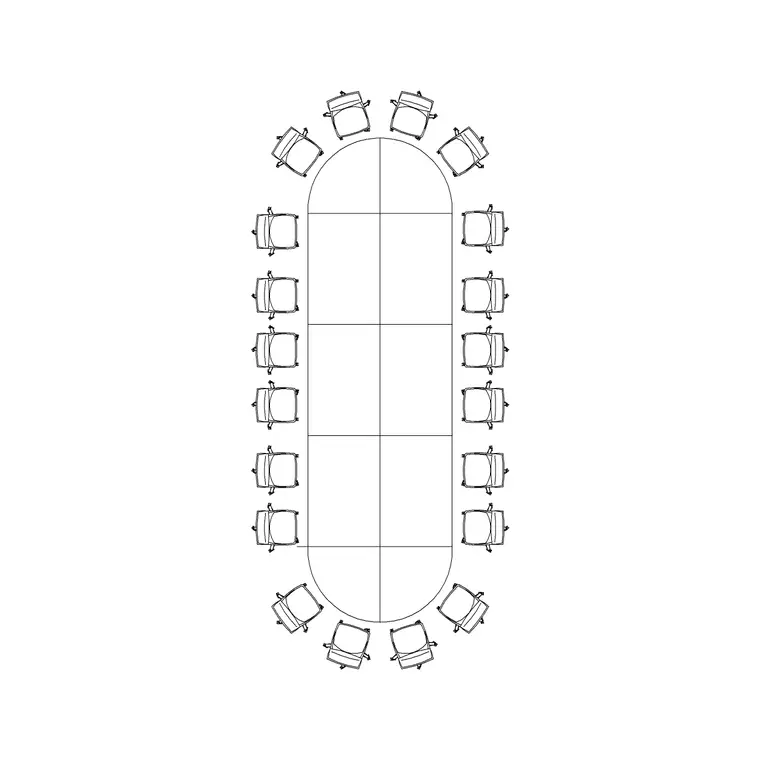
We will use a twenty-person conference table as the worked example. The centring and clearance logic is identical for smaller tables — only the room size and the circulation around the table change.
Choose a table sized to the seat count
Conference tables are sold by the number of people they seat, and the block usually reflects that with chairs in place. Pick the table whose seat count matches the brief — a twenty-seat boardroom table for a twenty-person room — rather than placing a smaller table and squeezing extra chairs around it. The seat count drives the table length, and the table length drives the room.
Note whether the block includes chairs. A table-with-chairs block is ideal for checking pull-out clearance and circulation in one go; a bare table lets you arrange seating yourself if the chair spacing in the brief is unusual.
Match units before inserting
These blocks are drawn full size in millimetres, so set your insertion units to millimetres with UNITS before you place the table. A large table makes a units error obvious — a boardroom table that should run a few metres will either swallow the building or vanish to a point if the units disagree.
This is worth catching early because everything downstream — the gap to the walls, the chair pull-out, the route to the door — depends on the table being at true size. Get the units right and those clearances read correctly the moment the table lands.
Insert and centre the table in the room
Run INSERT, browse to the conference table DWG, and place it roughly in the room. The reliable way to centre it: the insertion base point is usually the table centre, so snap that to the midpoint of the room. You can find the room centre by drawing diagonals corner to corner and using the intersection, or by using the midpoint of the room's bounding box.
A centred table is not always the goal — some rooms put the screen at one end and pull the table toward it for sightlines — but centred is the right default. Place it, then judge whether the room's screen wall or window wall argues for shifting it off-centre.
Check chair pull-out and walk-around clearance
The clearance behind the chairs is what makes a boardroom work. A person needs room to pull a chair back and stand, and someone else needs to walk behind the seated row. If the block came with chairs, check the gap from the back of a pulled-out chair to the wall — it should leave a genuine circulation route, not a pinch point.
Walk the perimeter mentally: can someone reach the far seat without making everyone else stand? Can the door open without hitting a chair? If the table is too big for the room these clearances collapse, and that is your signal to drop to a smaller table or grow the room — the block has just done your feasibility check for you.
Align to the room and the screen wall
Rotate the table so its long axis runs the way the room reads — usually parallel to the longer walls, with the head of the table facing the screen or the main entrance. Use ROTATE and snap to an orthogonal angle so the table sits square to the room rather than skewed.
If there is a wall-mounted screen or a presentation end, orient the table so the seats have sightlines to it. The head seat traditionally sits opposite the door or at the screen end; aligning the table to honour that hierarchy is a small touch that makes the layout read as intentional.
Set the layer and finish
Place the conference table on your furniture layer so it plots at the right lineweight and can be frozen for a clean architectural shell. If the block separates the table and the chairs onto sub-layers, keep that split so you can show the room furnished or bare.
Finally, confirm nothing fouls the table: the door swing clears the nearest chair, the credenza behind the head seat has its own clearance, and any floor boxes for power and data fall under or near the table rather than stranded across the room. Those checks turn a placed block into a workable meeting room.
Free download
Browse the full library — DWG & DXF, no signup.
Questions
Frequently asked
How do I centre a conference table in a room in AutoCAD?+
Insert the table with its base point at the table centre, then snap that point to the midpoint of the room. Find the room centre by drawing diagonals corner to corner and snapping to their intersection, or by using the midpoint of the room's bounding box.
How much clearance does a conference table need around it?+
Enough for a person to pull a chair back, stand, and for someone else to walk behind the seated row. Check the gap from the back of a pulled-out chair to the wall; if that collapses to a pinch point, the table is too big for the room. The exact figure depends on your office standard and local code.
Do conference table blocks include chairs?+
Many do, with the chairs arranged around the table at the correct seat count. A table-with-chairs block is ideal for checking pull-out clearance and circulation in one step. If you need a different chair arrangement, use a bare table block and place the seating yourself.
What view is a conference table block drawn in?+
Plan view, because the job of the block is to lay out the meeting room from above. The chairs and table footprint are what you need for space planning; an elevation conference table is rarely required unless you are drawing a specific interior elevation.
Related downloads
Blocks for this guide
Popular blocks to download
Related categories
Related guides
How-to guide
How to Edit a Block in AutoCAD (BEDIT)
Edit a block in AutoCAD with BEDIT — open the Block Editor, change the geometry, save, and update every inserted instance at once. Tips and pitfalls.
How-to guide
How to Explode a Block in AutoCAD (EXPLODE)
How to explode a block in AutoCAD with EXPLODE — break a block into editable lines, handle nested blocks, and use BURST to keep attributes.
How-to guide
How to Rename a Block in AutoCAD (RENAME)
How to rename a block in AutoCAD with RENAME — change a block's name without breaking its references, fix imported names, and apply a convention.