How-to guide · how to insert a chair block in autocad
How to insert a chair block in AutoCAD in 2026
By Sumana Kumar · Published 15 Dec 2025 · Updated 26 Feb 2026
Chairs are the block you place more than any other in a furnished plan — around tables, at desks, in waiting rooms, lined up in halls — so it pays to make inserting and repeating them second nature. A single chair is quick; the real skill is arraying a tidy row or a ring around a table so the seating reads evenly rather than scattered. This guide covers both, using a plan-view chair as the main example and touching on side-view chairs for elevations.
Unlike a sofa or a wardrobe, a chair is small, so a units mismatch can be easy to miss — a chair that comes in slightly wrong still looks plausible until you measure it. We will make checking units the first habit, then move through placing, tucking and arraying.
Step 1 — Pick the chair type and view you need
Choose the chair that fits the context: a dining chair, a stacking/visitor chair, a lounge chair or a bar stool, each with its own footprint. Then choose the view. A plan-view chair (seen from above) is what you place around tables and in layouts; a side-view or elevation chair is what you drop into an interior elevation or a desk-in-section drawing.
A typical dining or task chair occupies roughly a 450–550 mm square seat, with the overall plan footprint a little larger once you include the backrest and any splayed legs. Save the DWG to your library folder; it is drawn full size in millimetres.
Step 2 — Set units and insert the chair
Type UNITS and confirm 'Insertion scale' is Millimeters so AutoCAD rescales the block if its units differ from your drawing's. Because chairs are small, an unnoticed unit mismatch is the easiest furniture error to make, so it is worth this five-second check.
Run INSERT (or I), browse to the chair DWG, and pick it from the Blocks palette with the insertion point set to 'Specify On-screen'. The seat centre is a convenient base point. Click to drop the chair near where it belongs; it lands as a single block reference.
Step 3 — Rotate and tuck the chair under the table
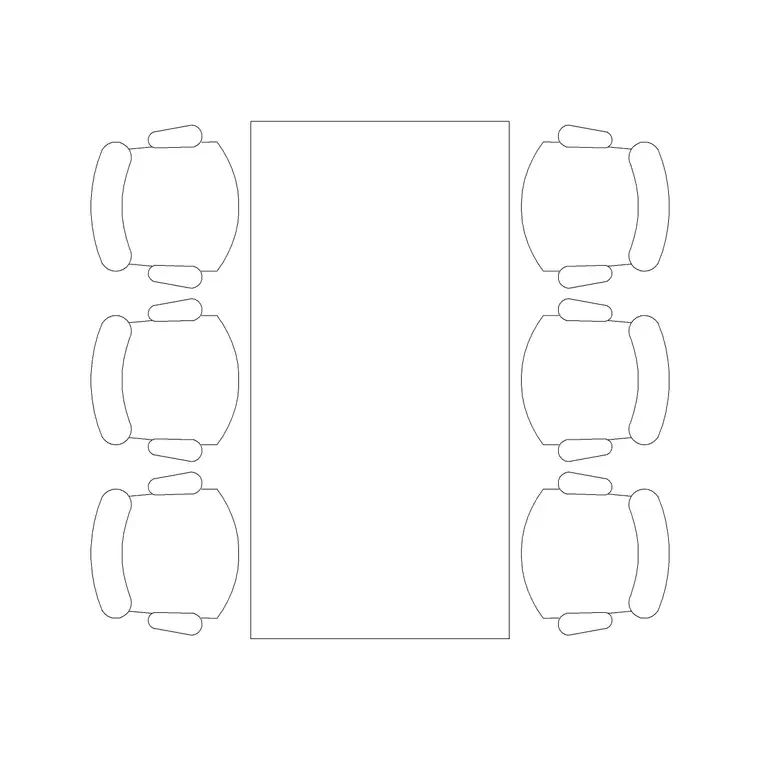
A chair almost always needs rotating to face its table or desk. Use ROTATE, snap the base point to the seat centre, and turn the chair so its back faces outward. To tuck it under a table edge, MOVE the chair with object snaps so the front of the seat sits just inside the tabletop line — in plan, a tucked-in chair shows the seat partly overlapped by the table, which is how a finished layout reads. Overlapping the seat slightly under the top is deliberate: it signals that the chair belongs to that table rather than floating beside it.
For a chair at a desk in elevation, use the side-view block and align its seat height with the desk so the drawing shows a believable working posture. A seat that floats above or sinks below the desk line is the giveaway that the elevation has not been set out against the worktop height, so snap the seat to a sensible 420–480 mm above the floor.
Step 4 — Array a row or ring of chairs
The fastest way to seat a table is ARRAY. For a long table or a row in a hall, use a rectangular array: select the chair, set the column spacing to the seat pitch (commonly around 600 mm centre-to-centre so diners aren't crowded), and the number of columns to the seats you need. Then MIRROR the row to the far side of the table.
For a round table, use a polar array: pick the table centre as the array centre, set the number of chairs, and let AutoCAD distribute them evenly around the circle, each automatically rotated to face inward. This is far cleaner than copying and rotating chairs one at a time.
Step 5 — Layer the chairs and keep them schedulable
Put the chairs on your furniture layer (A-FURN or similar) so you can freeze all seating for a structural plan and thaw it for the furnished version, and so the chairs carry their own colour and lineweight. Keeping each chair as a block reference — rather than exploding it — means you can later count them for a furniture schedule, either by quick-select or by attaching a simple attribute.
If you find yourself placing the same chair-plus-table arrangement repeatedly, WBLOCK the set so the whole group inserts in one go and stays editable from a single definition.
Tips and pitfalls when inserting chairs
Because chairs are small and numerous, three habits prevent most problems. First, check units — a slightly-wrong chair hides in plain sight. Second, prefer ARRAY over manual copying; hand-placed chairs drift out of alignment and look untidy at any reasonable scale. Third, mind the pull-out clearance even for a single chair: leave roughly 600 mm of clear depth behind a chair at a table so it can be drawn back.
A final tip: if a polar array leaves a chair sitting where the table has a pedestal leg or a gap, just erase that one instance — an array is still made of individual block references you can edit or delete after the fact.
Free download
Browse the full library — DWG & DXF, no signup.
Questions
Frequently asked
How do I array chairs evenly around a round table?+
Use a polar array (ARRAYPOLAR). Select the chair block, pick the table centre as the array centre, set the number of chairs, and AutoCAD distributes them evenly around the circle, each rotated to face inward.
Why is it easy to insert a chair at the wrong size?+
Chairs are small, so a units mismatch is less obvious than it would be on a large block — a slightly-wrong chair still looks plausible. Always set Insertion scale to Millimeters in UNITS before inserting so AutoCAD rescales the block correctly.
How do I tuck a chair under a table in plan?+
MOVE the chair with object snaps so the front of the seat sits just inside the tabletop line. In plan view the tucked chair shows its seat partly overlapped by the table, which is how a finished layout should read.
Should I use a plan or side-view chair block?+
Use a plan-view chair for floor-plan layouts and arraying around tables. Use a side-view or elevation chair when you are drawing an interior elevation or showing a seated figure at a desk in section.
Related downloads
Blocks for this guide

Popular blocks to download
Related categories
Related guides
How-to guide
How to Edit a Block in AutoCAD (BEDIT)
Edit a block in AutoCAD with BEDIT — open the Block Editor, change the geometry, save, and update every inserted instance at once. Tips and pitfalls.
How-to guide
How to Explode a Block in AutoCAD (EXPLODE)
How to explode a block in AutoCAD with EXPLODE — break a block into editable lines, handle nested blocks, and use BURST to keep attributes.
How-to guide
How to Rename a Block in AutoCAD (RENAME)
How to rename a block in AutoCAD with RENAME — change a block's name without breaking its references, fix imported names, and apply a convention.