How-to guide · how to draw a staircase in plan in autocad
How to draw a staircase in plan in AutoCAD
By Sumana Kumar · Published 27 Apr 2024 · Updated 5 Mar 2026
A staircase in plan is really an exercise in division: you take a known horizontal run, work out how many treads fit at a comfortable going, and array a series of parallel lines across it. Add a direction arrow, a handrail line and a break where the stair passes the cut plane, and you have a stair that any builder can read. The arithmetic is what trips people up, not the drawing, so this guide handles both.
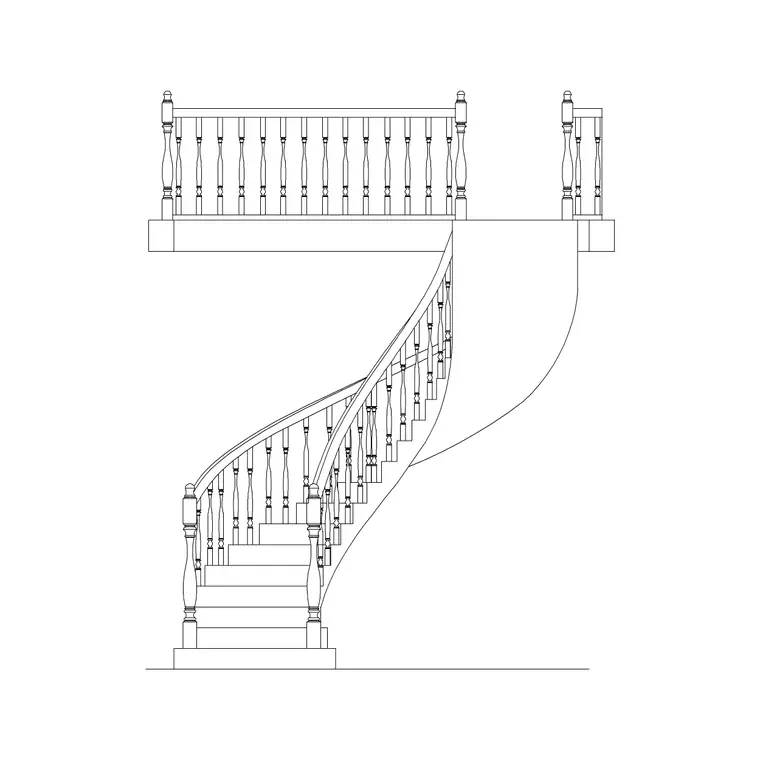
We will draw a straight single flight as the worked example because it is the clearest case and the foundation for everything else. Quarter-turn, half-turn and winder stairs build on the same tread-spacing logic with a landing or angled treads inserted. For curved and spiral stairs the geometry shifts to a radial array, and the stairs category has scaled stair blocks — including circular types — if you want to place rather than draw.
Step 1 — Work out the going and the number of treads
A stair is governed by two dimensions: the rise (vertical step height) and the going (horizontal tread depth). Comfortable domestic stairs typically use a rise around 175–200 mm and a going around 220–260 mm, and most codes tie the two together with a rule of thumb so the stair is neither too steep nor too shallow. In plan you mostly care about the going, because that is what you array.
Divide the available horizontal run by your chosen going to get the number of treads. If you have 3000 mm of run and a 250 mm going, that is twelve treads. Settle these numbers first; the whole plan is a direct expression of them, and changing the going later means re-spacing every line.
Step 2 — Draw the stair outline and the first tread
Draw the overall rectangle of the stair: its width (domestic stairs are commonly 850–1000 mm wide between walls or strings) by its total run. Then draw the first tread line — a single line across the full width at the bottom of the flight, marking the nosing of the first step.
This first line is the seed for the array in the next step, so place it precisely at one going from the start of the run. Keeping the stair on its own layer, distinct from the surrounding walls, makes the tread lines easy to read and easy to edit as a set.
Step 3 — Array the tread lines
Now multiply the tread line. Use the ARRAY command in rectangular mode: select the first tread line, set the row count to your number of treads, set the spacing equal to the going, and run it up the flight. AutoCAD lays down evenly spaced tread lines across the whole run in one operation.
This is far better than copying lines by hand, because if you later change the going or the number of treads you can edit the array parameters and every line re-spaces at once. Check that the last tread lands correctly against the upper floor or landing; if it overshoots, your going or run needs a small adjustment.
Step 4 — Add the direction arrow and UP/DN label
A stair must show which way it climbs, so add a direction line running up the centre of the flight with an arrowhead at the top and the label 'UP' (or 'DN' on the floor above). The arrow starts at the bottom tread and points toward the upper level, telling a reader the stair rises in that direction.
This is not decoration — on a multi-storey plan the up/down notation is how a reader works out which flight serves which level. Place the arrow and label on the stair layer, sized to read clearly at your plot scale, centred between the strings so it does not clash with the tread lines.
Step 5 — Draw the break line
On a plan, the floor is cut at roughly waist height, so a stair rising through that cut plane is shown only up to the break, with a diagonal break line (a zig-zag or a pair of parallel diagonal lines) slicing across the flight. Treads below the break are drawn solid; the portion above is either omitted or shown dashed, because it is above the cut.
Draw the break line diagonally across the flight at the cut position. This convention is what distinguishes a single-storey stair plan from a confusing tangle of every tread on every flight drawn on top of each other. Add the handrail as a line set in from the string, on its own layer, if the drawing scale warrants it.
Step 6 — Handle turns and save the block
For a quarter- or half-turn stair, draw each straight flight as above and insert a landing rectangle (or winder treads, drawn as triangular segments fanning around the turn) between them, keeping the going consistent on the straight runs. The tread-array logic is identical; you are just stitching flights together with landings.
When the stair is right, save it as a block with BLOCK, base point at a clear corner, units in millimetres, named like STAIR-STRAIGHT-12T. For reuse across projects, WBLOCK it out. For curved or spiral stairs, where treads radiate from a centre, a polar ARRAY around the centre point replaces the rectangular one — or you can simply drop in a scaled circular-stair block.
Common staircase plan mistakes
The biggest error is inconsistent going — treads that are not evenly spaced — which the ARRAY command prevents but hand-copying invites. Always array rather than eyeball. The second mistake is omitting the up arrow or break line, leaving the plan ambiguous about direction and about which treads are below the cut plane.
A third pitfall is a tread count that does not match the floor-to-floor height: the plan may look fine while the stair, in section, lands a step short or proud of the upper floor. Cross-check your number of treads and rise against the storey height before you commit, because a stair that works in plan but not in section is a stair that does not build.
Free download
Browse the full library — DWG & DXF, no signup.
Questions
Frequently asked
How do I space stair treads evenly in AutoCAD?+
Draw the first tread line, then use the ARRAY command in rectangular mode. Set the row count to your number of treads and the spacing to the going (tread depth). AutoCAD lays down evenly spaced lines, and you can re-edit the spacing in one go.
What going and rise should I use for stairs?+
Domestic stairs commonly use a rise of about 175–200 mm and a going (tread depth) of about 220–260 mm. In plan you mostly array by the going; check the rise against the floor-to-floor height so the tread count lands correctly.
Why is there a diagonal line across stairs in plan?+
That is the break line. A plan cuts the building at about waist height, so a stair rising through that plane is shown only up to the cut, with a diagonal break line across the flight. Treads below are solid; the part above is omitted or dashed.
How do I draw a spiral or curved staircase in plan?+
Use a polar (radial) array instead of a rectangular one: array the tread line around the stair's centre point so the treads fan out evenly. Alternatively, insert a scaled circular-stair block and skip the construction entirely.
Related downloads
Blocks for this guide
Related guides
How-to guide
How to Insert a Tree CAD Block in AutoCAD
Step-by-step guide to inserting a tree CAD block in AutoCAD — download the DWG, set units, use INSERT, scale and place it, then array trees across a site plan.
How-to guide
How to Create a Block in AutoCAD (BLOCK & WBLOCK)
Learn how to create a block in AutoCAD with the BLOCK and WBLOCK commands — pick a base point, choose objects, set units, and save a reusable DWG block library.
How-to guide
How to Array Trees Along a Path in AutoCAD
Use ARRAYPATH to line trees along a road, footpath or curve in AutoCAD — set spacing, align to the path, vary the look, and keep planting on its own layer.