How-to guide · how to add people figures to a cad plan
How to distribute people figures across a plan in AutoCAD
By Sumana Kumar · Published 26 Jul 2022 · Updated 29 Jan 2026
People figures — scale figures, entourage, occupancy markers — bring a plan to life and communicate use, scale and circulation in a way bare furniture never can. But distributing them well is the opposite of arraying: a perfectly even grid of identical people looks absurd, so the skill is placing them naturally while still working efficiently.
This guide covers adding plan-view human figures to a drawing, distributing them so they read as believable activity rather than a stamped pattern, varying the blocks to avoid the clone effect, and using figures to show scale, occupancy and circulation. We will also keep them on their own layer so they can be frozen for technical drawings and thawed for presentation.
Unlike trees down a road or chairs around a table, people are deliberately irregular. The whole point of this page is doing repetition without looking repetitive.
Why people figures don't get arrayed
Every other guide here reaches for an array, because trees, lights and pavers are meant to be regular. People are not. A real space has people in clusters, in ones and twos, facing different ways, doing different things — and an even array of identical figures instantly reads as fake and undermines the drawing.
So the technique is different: you place figures deliberately, by hand, but use efficient copying and a small palette of varied blocks to keep it quick. Think of it as composing a scene rather than filling a pattern. The effort goes into where and how, not into spacing maths.
Step 1 — Pick plan figures and set the scale
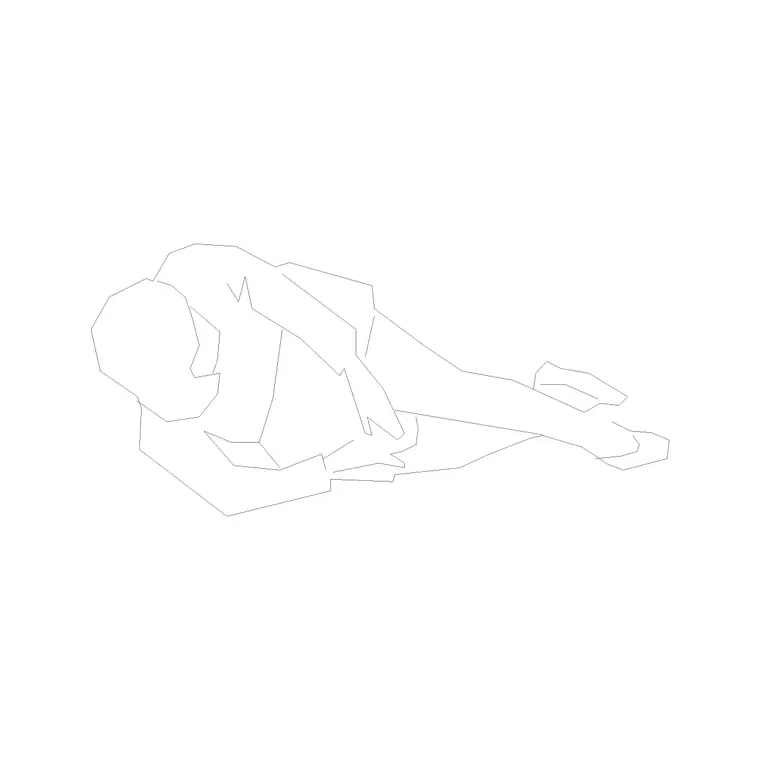
For a floor plan or site plan you want plan-view human figures — the figure seen from above, which is what reads correctly in plan. Insert a plan figure and check its size against the drawing: a person's plan footprint is small, so the block should sit at human scale relative to your furniture and rooms.
Get the units right (set INSUNITS to millimetres for blocks drawn in millimetres) so the figure lands at true size rather than microscopic or giant. With one figure placed and correctly scaled, you have your reference for everything that follows. Place it on a dedicated layer — something like A-FURN-PEOPLE or simply PEOPLE — from the start.
Step 2 — Distribute figures where activity belongs
Now compose. Put figures where people actually go and what they actually do: a couple at a reception desk, a small group in a meeting room, individuals at workstations, a cluster in a café, people moving through a corridor or lobby. Let density follow use — busy areas get more figures, quiet ones fewer or none.
Resist the urge to spread figures evenly. Real occupancy is lumpy: knots of people in some places, empty space in others. Copy your reference figure to each location (the COPY command stays in multiple mode, so this is quick), then in the next step vary them so the copies don't betray themselves as identical.
Step 3 — Vary the figures so they don't look cloned
Identical copies are the giveaway. Break the clone effect with three moves: rotate figures to face different directions (people don't all face north), mirror some so left and right hands differ (MIRROR with MIRRTEXT set to 0), and use a small palette of two to four different figure blocks rather than one.
Even small rotations help enormously — a few degrees here, a quarter turn there, makes a group read as individuals. If you have figures in different poses (standing, walking, seated), mix them by activity: seated figures at desks and tables, walking figures in circulation routes, standing figures in gathering spaces. The variety is what sells the scene as real.
Step 4 — Use figures to show scale and circulation
People figures do real communicative work beyond decoration. As scale figures, a single well-placed person tells the viewer instantly how big a space is — the eye reads human size faster than any dimension. Drop a figure or two into each key space so the scale is legible at a glance.
For circulation, place walking figures along the routes people take — through entrances, along corridors, across a lobby — to show how the building is used and where movement concentrates. A presentation plan with thoughtful entourage reads as a living building; the same plan with bare rooms reads as an abstract diagram. This is why architects invest time in people placement for client and competition drawings.
Figures for occupancy and capacity
Beyond presentation, figures can carry analytical meaning. Placing one figure per occupant in a space turns the plan into an occupancy diagram — useful for showing how many people a room is designed for, checking that circulation and exits suit the headcount, or illustrating density for a brief. Seated figures at every desk show the workstation count; figures spread at a planned density show how a flexible space fills.
Keep these analytical figures on their own layer (or a sub-layer) so you can present an 'occupied' version of the plan and a clean version from the same drawing. Where you need an exact count, an arrayed or carefully-placed set of figures, each on the people layer, lets you read or even schedule the occupancy directly from the drawing.
Keep people on their own layer
As with furniture and planting, a dedicated people layer is the habit that keeps the drawing flexible. Technical and construction drawings should not be cluttered with entourage, so freeze the people layer to produce a clean working plan; thaw it for the presentation and client drawings. One drawing serves both purposes with no duplicate geometry.
Give the people layer its own colour and a light lineweight so figures sit quietly in the composition rather than competing with the architecture. And because figures are blocks, you can build a small reusable set — a few poses, plan and elevation — and drop them into any drawing, so your presentation plans stay quick to populate and consistent in style across a project.
Free download
Browse the full library — DWG & DXF, no signup.
Questions
Frequently asked
Should I array people figures across a plan?+
No. An even array of identical figures looks obviously fake. Place people figures by hand where activity belongs — clustered in busy areas, sparse in quiet ones — and use efficient copying plus a varied palette of blocks to stay quick without looking stamped.
How do I stop copied people figures looking identical?+
Vary them: rotate figures to face different directions, mirror some (with MIRRTEXT set to 0), and use a small palette of two to four different figure blocks. Mixing poses — seated, walking, standing — by activity makes a group read as individuals.
Which view of a person should I use on a floor plan?+
Use plan-view human figures — the person seen from above — for floor and site plans, since that is what reads correctly in plan. Use elevation figures for sections, building elevations and presentation views where the person is seen from the side.
How do people figures show the scale of a space?+
A human figure is a size everyone instantly recognises, so a well-placed person lets the viewer read how big a space is at a glance — faster than any dimension. Drop a figure or two into each key space and the plan's scale becomes legible immediately.
Related downloads
Blocks for this guide
Related guides
How-to guide
How to Insert a Tree CAD Block in AutoCAD
Step-by-step guide to inserting a tree CAD block in AutoCAD — download the DWG, set units, use INSERT, scale and place it, then array trees across a site plan.
How-to guide
How to Create a Block in AutoCAD (BLOCK & WBLOCK)
Learn how to create a block in AutoCAD with the BLOCK and WBLOCK commands — pick a base point, choose objects, set units, and save a reusable DWG block library.
How-to guide
How to Array Trees Along a Path in AutoCAD
Use ARRAYPATH to line trees along a road, footpath or curve in AutoCAD — set spacing, align to the path, vary the look, and keep planting on its own layer.