Explainer · how cad block downloads are organized
How CAD block downloads are organised
By Saumyajit Maity · Published 19 Jun 2023 · Updated 29 May 2026
A good CAD block library can hold thousands of blocks, so how those downloads are organised decides whether you find the right one in seconds or spend ten minutes hunting. Most libraries organise around a few consistent ideas: categories that group blocks by what they are, views that distinguish how each block is drawn, and naming that spells out the object so you know what you are getting before you open it.
This page explains the common organising structure — categories, subcategories, views and naming conventions — so you can navigate a library efficiently and find the exact block you need. It also covers how to organise the blocks you download into your own tidy library, so the structure that helps you find a block also helps you reuse it later.
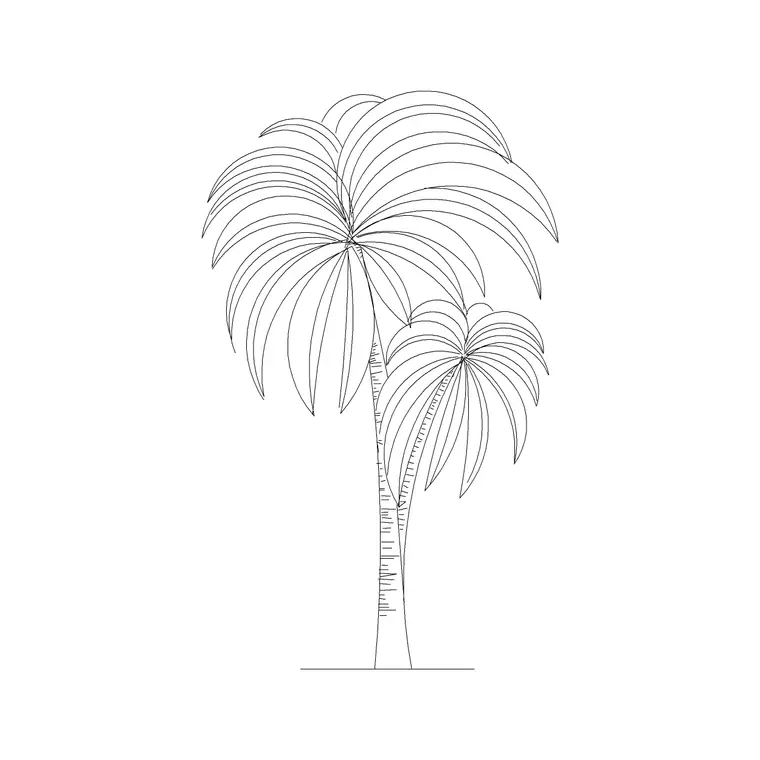
This site organises its catalogue this way, with categories like furniture and trees-and-plants, each block tagged by view, so the structure below maps directly onto how you browse and download here.
Categories: grouping by what a block is
The top-level organising idea is the category — a grouping of blocks by the kind of object they represent. Furniture, trees and plants, vehicles, doors and windows, sanitary fittings, kitchen, lighting: each category collects the blocks of one type so you can browse straight to the family you need rather than scrolling a single giant list.
Categories mirror how designers think. When you need a sofa, you go to furniture; when you need a palm, you go to trees and plants. A large category may run to hundreds of blocks, which is why categories are usually paired with views and search to narrow further. The category is the front door of the library — pick the right one and you are already most of the way to the block you want.
Views: the same object, drawn differently
Within a category, blocks are distinguished by view — plan, elevation, side view, top view, section. This matters because the same object exists as several different drawings, and you need the one that matches your sheet. A furniture category holds both plan sofas for layouts and elevation sofas for elevations; tagging each by view lets you filter to exactly the representation you need.
Good libraries label the view clearly and show a preview image so you can confirm at a glance. The view is often baked into the block name too, so 'sofa set plan' and 'palm elevation' tell you the viewpoint without opening the file. Filtering by view inside a category is the second big narrowing step after picking the category itself.
Naming conventions that tell you what's inside
Consistent naming is what makes a library searchable. A typical convention puts the object first, then a view or variant: 'sofa set plan 1', 'palm elevation 1'. Reading the name tells you the object, the viewpoint and which variant you are looking at, all before you download. Numbered variants ('1', '2') distinguish several blocks of the same type without ambiguity.
This predictability is what makes search work well. Type 'sofa' and every sofa block surfaces; add 'plan' and you narrow to plan-view sofas. The same logic helps when you organise your own downloads — adopting the object-first naming pattern means your personal library is as searchable as the site you got the blocks from.
Search and filters to cut through volume
When a category holds hundreds of blocks, browsing alone is slow, so libraries add search and filters. Search matches the block name and tags, so a keyword like 'palm' or 'sofa' jumps straight to the relevant blocks. Filters narrow by view, by format, or by other attributes, letting you combine 'furniture' plus 'plan' to see only plan-view furniture.
The practical workflow is: pick the category, search or filter to the object and view you need, check the preview image, then download. Done this way, finding a specific block in a library of thousands takes seconds rather than minutes. Tags behind the scenes — words derived from the object and its folder — are what make a single search term pull up everything relevant.
What a download actually contains
Knowing what is in a download helps you organise it. A block download is typically a single DWG (and often a DXF) containing the block's geometry, ready to insert. Some downloads bundle several views of the same object in one file; others are one view per file. The download page lists the views and formats so there are no surprises.
Because each download is a self-contained block, you can drop it straight into a project library folder and reuse it. There is no installer and no dependency — just the drawing file. That simplicity is what lets you build a personal library by accumulating downloads, each one a tidy, reusable unit you insert as needed.
Organising your own downloaded blocks
Mirror the library's structure in your own filing and your downloads stay findable. Make folders by category — Furniture, Planting, Vehicles — and within them keep the object-first names the blocks arrived with. A flat dumping ground of cryptically-named DWGs is the enemy of reuse; a tidy, categorised folder tree is a personal library you will actually use.
- Group downloads into category folders matching how you think - Keep object-first, view-tagged names so search and browsing both work - Put your most-used blocks on tool palettes for instant drag-and-drop - Add a preview or note for anything whose name isn't self-explanatory
The same organising principles that let you find a block on a well-run site — categories, views, clear names — are exactly the ones that keep your own growing library usable as it scales into the hundreds and thousands of files.
Free download
Browse the full library — DWG & DXF, no signup.
Questions
Frequently asked
How are CAD blocks usually organised on a download site?+
By category (furniture, trees and plants, vehicles, and so on), then by view (plan, elevation, side view), with consistent object-first naming. You pick a category, filter or search to the object and view you need, check the preview, and download.
How do I find a specific CAD block quickly?+
Pick the category that matches the object, then search by keyword (like 'sofa' or 'palm') and filter by view. Checking the preview image before downloading confirms you have the right block. This finds a block in seconds even in a library of thousands.
What's in a single block download?+
Usually one DWG (and often a DXF) containing the block's geometry, ready to insert. Some downloads bundle several views of the same object in one file. The download page lists the views and formats so you know before you download.
How should I organise the blocks I download?+
Make category folders (Furniture, Planting, and so on) and keep the object-first names the blocks came with, so browsing and search both work. Put your most-used blocks on tool palettes for quick drag-and-drop into drawings.
Related downloads
Blocks for this guide

Popular blocks to download
Related categories
Related guides
Explainer
Are DWG and DXF the Same File? Explained
DWG and DXF are not the same file. Learn the real difference, which one to download for AutoCAD blocks, and when DXF is the safer choice.
Explainer
Why Is My CAD Block a Different Color?
Your CAD block came in red, white or the wrong colour? Learn how ByLayer, ByBlock and hard-coded colours work so you can fix it in AutoCAD.
Explainer
Why Do CAD Blocks Come In on the Wrong Layer?
Inserted a CAD block and it dumped new layers or sat on the wrong one? Learn how block layers work in AutoCAD and how to control where they land.