Explainer · hatch pattern vs block
Hatch pattern vs block in CAD: what's the difference?
By Sumana Kumar · Published 3 May 2026 · Updated 8 Jun 2026
Hatch patterns and blocks are both ways of getting repeated graphics into a drawing, which is why they sometimes get confused — but they are fundamentally different tools for different jobs. A hatch fills a bounded area with a repeating pattern, such as the diagonal lines that show a cut material or the brick pattern on a wall. A block is a single, reusable object, such as a chair or a tree, that you insert and reuse as a discrete item.
This page explains what each one is, how they behave differently, when you reach for a hatch versus a block, and the cases where they work together. Understanding the distinction stops a common beginner mistake — trying to use one where the other belongs — and helps you read drawings correctly, where hatches and blocks each carry a specific kind of meaning.
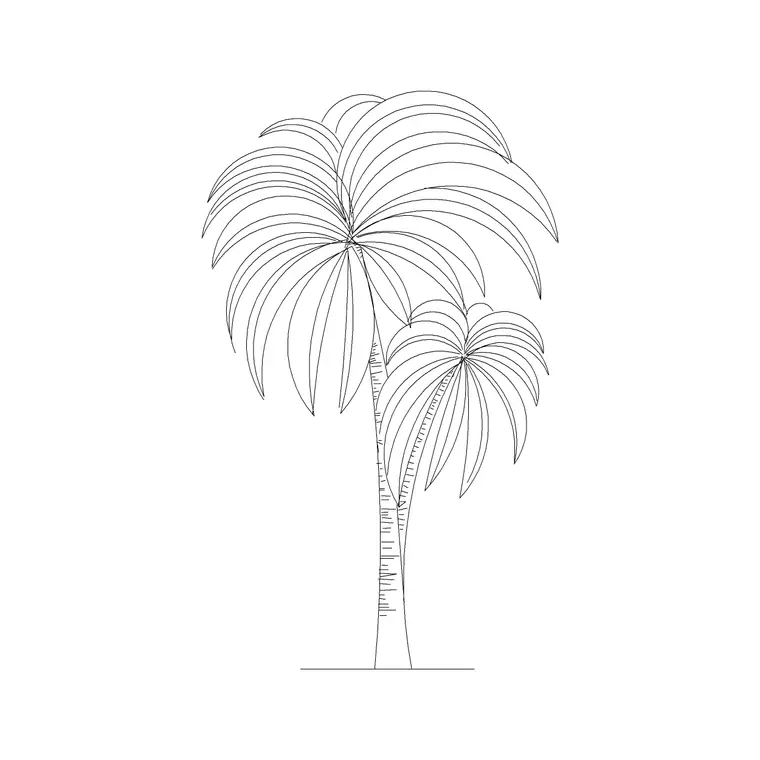
The downloads here are blocks: discrete, scaled objects like furniture and trees you insert into a drawing. Hatches are something you generate within the drawing, not download, and knowing the difference makes both more useful.
What a hatch pattern is
A hatch is a fill. You define a closed boundary — a room outline, a wall section, a paved area — and AutoCAD fills it with a repeating pattern: parallel lines, crosshatching, a brick or gravel texture, or a solid colour. The pattern tiles to fill whatever area you give it, scaling and rotating as you specify. The hatch is associated with its boundary, so if the boundary changes shape, the hatch updates to match.
Hatches answer the question 'what is this area?' A diagonal hatch in a section means cut material; a brick pattern on an elevation means brickwork; a stippled fill on a plan might mean a planted bed or gravel. The pattern is a convention that communicates a material or surface across a region, not a discrete object.
What a block is
A block is a named, reusable object made of grouped geometry that you insert as a single item. A sofa, a tree, a door, a north arrow — each is drawn once and stored as a block, then inserted wherever needed as one selectable object. Edit the block definition and every instance updates; copy the block and you have another independent placement of the same object.
Blocks answer the question 'what object is here?' A sofa block in a plan means a sofa sits at that spot; a tree block means a tree. The block has a footprint, an insertion point and an identity. It is a thing in the drawing, whereas a hatch is a treatment applied to a region of the drawing. That difference — object versus area fill — is the heart of the distinction.
How they behave differently
The two behave nothing alike once placed. A block is a single object with an insertion point; you move, copy, rotate, scale and array it as a unit, and it carries its geometry with it. A hatch has no insertion point and no independent existence — it is tied to a boundary and fills it, so moving the boundary moves the fill, and there is no 'one hatch object' you array around the way you array a chair.
Editing differs too. You change a block by editing its definition (BEDIT), which ripples to every instance. You change a hatch by editing its pattern, scale, angle or boundary through the Hatch Editor or Properties. A block is about repeating a defined object; a hatch is about filling a defined area. Trying to use a hatch to repeat objects, or a block to fill an arbitrary area, fights the tool.
When to use a hatch
Use a hatch whenever you need to indicate a material, surface or region across an area. Showing cut material in a section, brickwork or render on an elevation, paving or grass on a site plan, insulation in a detail, a planted bed on a landscape plan — all of these are hatches. The defining feature is that you are filling a bounded area with a convention, not placing a countable object.
Hatches scale with the drawing and with their pattern scale, so set the scale so the pattern reads clearly at your plot scale — too dense and it muddies, too coarse and it loses meaning. Keep hatches on their own layer so you can control their colour and lineweight, and freeze them when you want a clean line drawing without the fills.
When to use a block
Use a block whenever you have a discrete, repeatable object: furniture, trees, vehicles, people, fixtures, fittings, symbols, title-block components. Anything you would place, count, and possibly schedule is a block. The sofa and palm you download here are blocks precisely because they are objects you position individually and reuse across drawings.
Blocks shine when the same object recurs: define it once, insert it many times, and a single edit to the definition updates them all. They also support attributes — data attached to a block — so you can extract a schedule (how many chairs, which type) straight from the drawing. None of that applies to a hatch, which is why object-type content is always a block, never a fill.
When they work together
Hatches and blocks are not rivals; a finished drawing uses both, often on the same object. A plan-view tree block might be drawn with a hatched canopy fill inside the block definition — the block is the object, the hatch inside it gives the canopy its texture. A paved courtyard uses a hatch for the paving and furniture blocks for the benches and planters on top of it.
- Hatch: fills a bounded area to show a material or surface - Block: a discrete, reusable object you insert and count - A block can contain a hatch; a hatch can sit beneath blocks - Keep both on their own layers for clean control
Think of the hatch as the surface and the block as the object that sits on or within it. Used together — and used for the right job each — they are how a drawing reads as both a set of materials and a set of things.
Free download
Browse the full library — DWG & DXF, no signup.
Questions
Frequently asked
What is the difference between a hatch and a block in CAD?+
A hatch fills a bounded area with a repeating pattern to show a material or surface (like brick or gravel). A block is a single, reusable object you insert and count (like a chair or a tree). One is an area fill; the other is a discrete object.
When should I use a hatch instead of a block?+
Use a hatch to indicate a material or surface across an area — cut material in a section, brickwork on an elevation, paving or grass on a plan. If you're filling a bounded region with a convention rather than placing a countable object, it's a hatch.
Can a block contain a hatch?+
Yes. A plan tree block, for example, may include a hatched canopy fill inside its definition — the block is the object, and the hatch within it gives the canopy texture. Blocks and hatches frequently work together in one drawing.
Can I download hatch patterns like I download blocks?+
Hatch patterns are generated within the drawing using the HATCH command, choosing a pattern, scale and boundary — they aren't discrete files you insert like blocks. Downloads on this site are blocks: scaled, reusable objects such as furniture and trees.
Related downloads
Blocks for this guide

Popular blocks to download
Related categories
Related guides
Explainer
Are DWG and DXF the Same File? Explained
DWG and DXF are not the same file. Learn the real difference, which one to download for AutoCAD blocks, and when DXF is the safer choice.
Explainer
Why Is My CAD Block a Different Color?
Your CAD block came in red, white or the wrong colour? Learn how ByLayer, ByBlock and hard-coded colours work so you can fix it in AutoCAD.
Explainer
Why Do CAD Blocks Come In on the Wrong Layer?
Inserted a CAD block and it dumped new layers or sat on the wrong one? Learn how block layers work in AutoCAD and how to control where they land.