Block landing · tree with leaves cad block
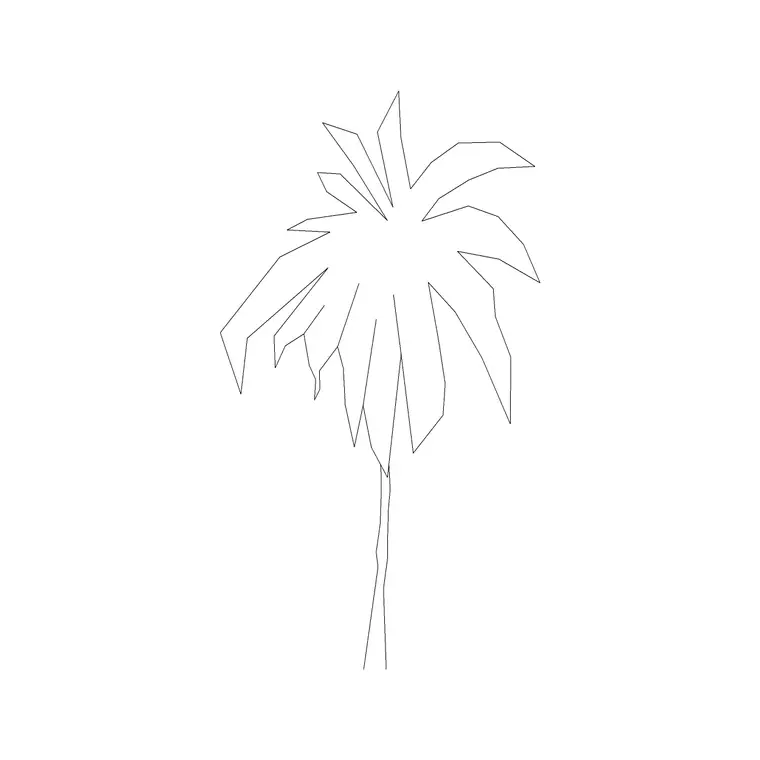
Free tree with leaves detail CAD block for AutoCAD
By Saumyajit Maity · Published 9 Sep 2025 · Updated 9 Mar 2026
A tree-with-leaves detail block is the foliated, drawn-out version of a tree — branches, twigs and a textured leaf canopy rather than a simple outline. It is the block you reach for when a drawing needs to look finished: a presentation elevation, a rendered street section, a competition board where the planting has to read as real foliage rather than a placeholder circle. This page collects free tree-with-leaves CAD blocks in DWG and DXF, drawn at true scale and free for personal and commercial work, with no signup and no watermark.
These detailed trees sit at the opposite end of the spectrum from the simple symbols you use on a large masterplan. Where a 1:500 plan wants a clean circle, a 1:50 or 1:100 elevation wants visible branching and leaf texture so the tree carries character and species feel. Use these blocks for the views people actually look at closely — entrance elevations, garden sections, marketing visuals — where the difference between a generic lollipop and a properly foliated tree is the difference between a drawing that convinces and one that doesn't.
What makes a 'detail' tree different
A detail tree carries far more linework than a symbol tree. Instead of a single canopy outline, you get a drawn trunk with tapering branches, secondary twigs, and a leaf mass built from many small strokes, stipples or a fine hatch that reads as foliage at close range. The silhouette is usually irregular and organic rather than a tidy circle, which is what gives it a natural, species-specific feel.
That richness is exactly why you reserve detail trees for the right scale. At a large plan scale the extra linework collapses into a black blob, so the simple symbol wins. At an elevation or detail scale the same linework reads beautifully and makes the planting believable. Knowing which tree to use at which scale is half the skill of drawing planting well.
Views and what's in the file
Tree-with-leaves detail blocks are most often supplied as elevations — the tree seen from the side, drawn at a believable height with trunk, branches and a foliated canopy. This is the view that matters for street sections, building elevations, garden sections and presentation drawings, where the tree sits against architecture and has to look planted rather than pasted.
The file typically separates the trunk and branch linework from the leaf texture on different layers, so you can thin or recolour the foliage without losing the structure, or print the branches heavier than the leaves for a hand-drawn feel. Where a matching plan symbol is included, you can carry the same species between the section and the layout. The DWG targets AutoCAD 2004 format for broad compatibility.
Typical sizing for a foliated tree
Because these are elevation blocks, height matters as much as spread. As design references: a small ornamental tree reads around 3–5 m tall, a medium amenity tree 6–9 m, and a large parkland or street tree 10–15 m or more at maturity, with the canopy spread roughly comparable to or a little less than the height for many broadleaf species. Always scale to the species and the design year you are showing.
Scale the block from the trunk base so the tree grows up and out from the ground line correctly. Sit the trunk base exactly on your section's ground or pavement line; a detail tree floating above the ground, or buried in it, is the most common giveaway of a rushed elevation. If the foliage looks too dense at your print scale, thin the leaf layer rather than rescaling the whole tree.
How to insert and place it cleanly
These blocks are drawn full size in millimetres, so confirm your insertion units (type UNITS, set Insertion scale to Millimeters) before placing, then run INSERT and browse to the DWG. Pick the trunk base as the insertion point and snap it to your ground line. Put the tree on a planting or landscape layer so you can toggle the foliage independently of the architecture.
For a row of detail trees in an elevation, copy rather than array-with-identical-scale, and vary each tree's height and mirror a few horizontally so the row doesn't read as one tree repeated. If you need to simplify a busy canopy for a smaller print, use BEDIT to edit the leaf layer in the definition once and every instance updates together.
Where detail trees earn their keep
Detail trees belong on the drawings people study up close. Architects use them on entrance and street elevations to soften and contextualise a facade; landscape designers use them in garden sections and feature-area details; visualisers use them as line-art bases for rendered marketing images. They also shine on student presentation boards, where a well-drawn foliated tree signals care and lifts the whole sheet.
What they are not for is a large-scale masterplan, a structural site plan, or a technical setting-out drawing — there a simple symbol is clearer and lighter. Keeping a detail tree and a simple symbol of the same species in your library lets you pick the right one for each drawing without compromising either.
Pairing detail trees with simpler symbols
The most efficient planting library carries each tree at two or three levels of detail: a clean plan symbol for layouts, a simple elevation for mid-scale sections, and a fully foliated detail tree for close-up presentation. Drawing the same scheme at different scales then becomes a matter of swapping symbols rather than redrawing canopies.
Keep the detail trees on their own layer and at consistent insertion points so they drop in predictably alongside their simpler cousins. Combine them with shrub and ground-cover symbols beneath, and with potted or feature-plant blocks near entrances, to build elevations and sections where every layer of planting reads at the right weight for the drawing.
Free download
Browse the full library — DWG & DXF, no signup.
Questions
Frequently asked
When should I use a detailed tree instead of a simple symbol?+
Use a detailed, foliated tree for elevations, sections and presentation views seen at large scale (around 1:50–1:200), where the extra branch and leaf linework reads as real foliage. Use a simple plan symbol for masterplans and structural site plans, where detail just turns to a blob.
What view does the tree-with-leaves block come in?+
Most often an elevation — the tree seen from the side with trunk, branches and a foliated canopy — for street sections and presentation drawings. Some files include a matching plan symbol so you can carry the species into a layout too.
Is the detailed tree block free to use on client work?+
Yes. It downloads free in DWG and, where available, DXF, with no signup, no watermark and no attribution requirement, and it is cleared for commercial project use.
How do I stop a detail tree looking copy-pasted in a row?+
Copy rather than array at identical scale, then vary each tree's height by a few percent, rotate or mirror some horizontally, and overlap canopies slightly. That small variation reads as a real planted row instead of one tree repeated.
Related downloads
Blocks for this guide
Popular blocks to download
Related categories
Related guides
Block landing
Free Flower Plant CAD Blocks — DWG Download
Free flower plant CAD blocks in DWG and DXF — flowering annuals and perennials in plan and elevation for AutoCAD landscape plans. No signup, commercial OK.
Block landing
Free Flowering Shrub CAD Blocks — DWG Download
Free flowering shrub CAD blocks in DWG and DXF — ornamental shrubs in plan and elevation for AutoCAD planting and site plans. No signup, commercial OK.
Block landing
Free Herb Plant CAD Blocks — DWG Download
Free herb plant CAD blocks in DWG and DXF — herbs for kitchen gardens, raised beds and planters, in plan and elevation for AutoCAD. No signup, commercial OK.