Block landing · tree elevation cad block
Free tree elevation CAD blocks for AutoCAD
By Sumana Kumar · Published 4 Dec 2022 · Updated 9 Apr 2026
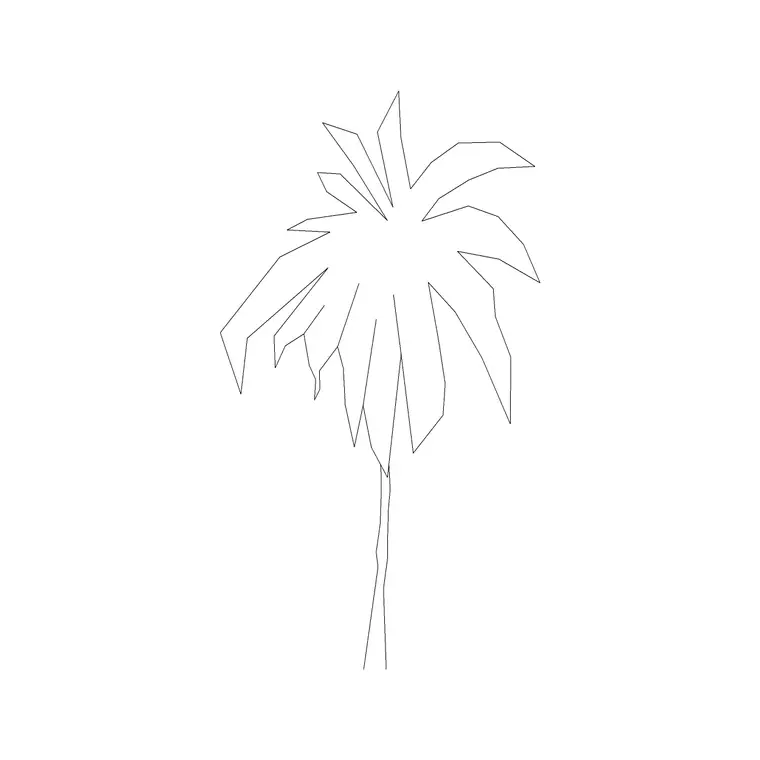
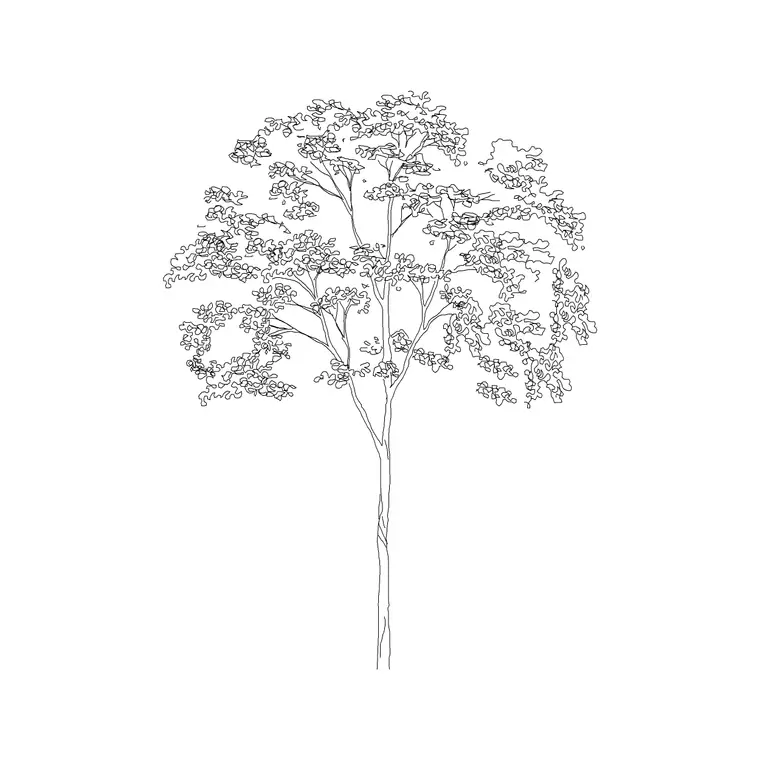
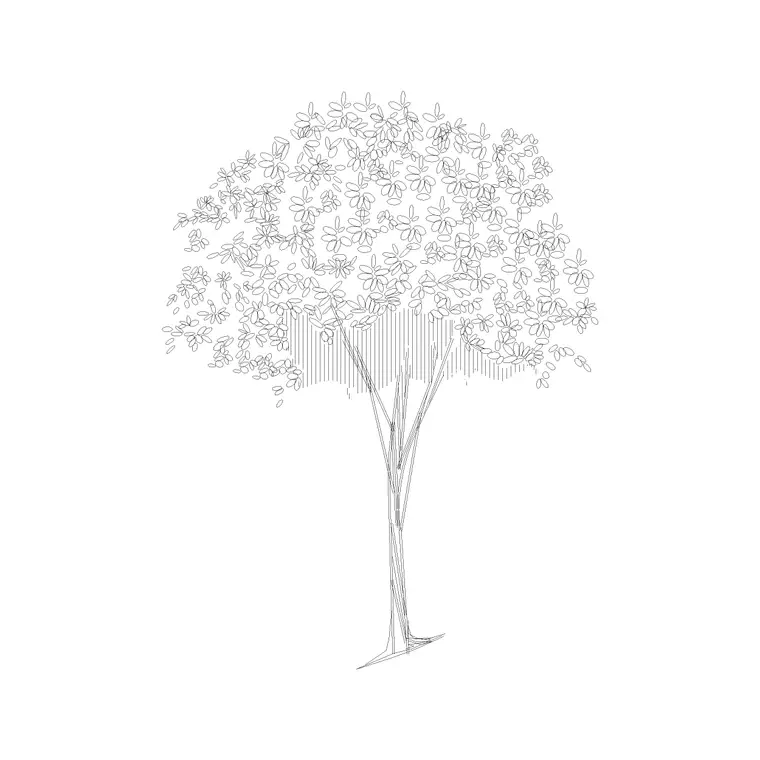
A tree elevation block is a tree drawn as you see it standing in front of you — trunk rising from the ground, branches and canopy reaching up and out, the whole height shown true to scale. Where a plan symbol answers 'where is the tree', an elevation answers 'how does it sit against the building'. It is the view you reach for when you draw a street section, a building elevation with planting, or a presentation board that needs the scheme to look alive. This page gathers free tree elevation CAD blocks in DWG and DXF, drawn to believable heights and ready to insert into AutoCAD 2004 or later, all free for personal and commercial use with no signup or watermark.
Elevation trees are doing a job that is half technical and half graphic. Technically they have to read at the correct height so a section is honest about how much a canopy screens a window or shades a façade. Graphically they soften a hard architectural elevation and give it human scale, which is why they appear on almost every drawing that is shown to a client.
What an elevation tree block contains
An elevation block shows the tree's full profile: a trunk of a given clear-stem height, the spreading branch structure above it, and an outer canopy outline. Some are drawn as a simple silhouette for clean sections; others carry branch detail and foliage texture for richer presentation work. A baseline at the foot of the trunk marks ground level, which is the line you align to your section's finished ground.
The blocks here separate the trunk, the branch structure and the canopy outline onto sensible layers, so you can show a winter, bare-branch version by freezing the foliage, or simplify a busy tree for a small-scale section. The trunk base sits on the insertion point so the tree plants cleanly onto your ground line every time.
Heights and proportions to design around
An elevation tree is only believable if its height is right relative to the building beside it. Use these reference figures: a small ornamental or street tree reaches roughly 4–8 m overall, a medium tree 8–12 m, and a large shade or forest tree 12–20 m and beyond. The clear stem — trunk height before the first branches — is typically 1.8–2.5 m for a street tree so it sits above pedestrians and vehicles.
Scale the block so its overall height matches the species at the design year you are drawing. A common mistake is to draw every tree at the same height; in reality a row of street trees of mixed maturity, or an understorey beneath taller specimens, reads far more naturally and tells a more honest story about how the scheme will grow in.
Inserting against a ground line
These elevation trees are drawn full size in millimetres with the trunk base at the insertion point. Set INSUNITS to millimetres (or insert at 0.001 in a metre drawing) so the tree arrives at the right height rather than microscopic or enormous. Run INSERT, browse to the DWG, and snap the insertion point onto your section's finished ground line.
Because the base sits exactly on the ground, the tree plants without fiddling. To populate a street elevation, copy the block along the pavement and vary the scale and the mirror so no two trees are identical. If your ground line steps or slopes, place each tree on the local ground level rather than a single datum, so the trees follow the terrain like real planting.
Silhouette, detailed and bare-branch versions
Elevation trees come in three broad styles, and choosing the right one keeps a drawing legible. A solid or lightly hatched silhouette reads cleanly on a technical section where the architecture is the subject. A detailed, foliage-textured tree suits a presentation elevation where you want the planting to feel real. A bare, branch-only version is invaluable for showing winter conditions, for proving a canopy will not block a view in summer, or for keeping a façade visible behind the planting.
Keeping the foliage on its own layer means one block can serve all three: thaw the foliage for a summer presentation, freeze it for a winter view or a technical section. That single habit saves carrying three separate tree libraries.
Where elevation trees are used
Elevation trees belong to the drawings people actually look at: street sections, landscape sections, building elevations with context planting, urban-design frontages and presentation boards. Highway and public-realm drawings use them to show how an avenue will mature; architects use them to soften an elevation and give it scale; landscape designers use them to demonstrate screening, shading and seasonal change.
Keep them on a planting layer so they can be frozen for a clean technical elevation and thawed for the presentation version. Pair these elevation blocks with the matching plan-view trees in the trees-and-plants category so your section and your plan describe the same scheme — a coordination check that is easy to forget and obvious when it is wrong.
Matching elevation trees to the plan
The most common slip with elevation trees is a mismatch between what the plan says and what the section shows — three big trees on the plan, two skinny ones in the elevation. Because the plan symbol and the elevation block describe the same object from different directions, it pays to size them together: set the plan circle to the crown spread, and the elevation height to the matching overall height for that species and age, so a reader moving between the two drawings sees a consistent tree.
When the elevation reads well, you can group the planting for a frontage and WBLOCK it as a reusable streetscape unit. Drop that into the next similar elevation and you have a believable, scaled avenue in seconds rather than redrawing every canopy by hand.
Free download
Browse the full library — DWG & DXF, no signup.
Questions
Frequently asked
What is the difference between a tree elevation and a plan block?+
An elevation block shows the tree from the side — trunk and canopy at full height — for sections and elevations. A plan block shows the canopy from above as a circle for site and landscape plans. Many schemes use both, matched to the same species.
Are the tree elevation blocks free for commercial use?+
Yes. Every elevation tree downloads free in DWG and, where available, DXF, with no signup, no watermark and no attribution requirement, and is cleared for commercial project use.
How do I plant an elevation tree onto my ground line?+
The trunk base sits on the block's insertion point, so simply snap the insertion onto your section's finished ground line. On stepped or sloping ground, place each tree on its local ground level rather than one datum.
Can I show a tree with bare branches for a winter view?+
Yes. The foliage sits on its own layer, so freezing it leaves a bare branch structure — ideal for winter conditions, screening checks, or keeping a façade visible behind the planting.
Related downloads
Blocks for this guide
Related categories
Related guides
Block landing
Free Flower Plant CAD Blocks — DWG Download
Free flower plant CAD blocks in DWG and DXF — flowering annuals and perennials in plan and elevation for AutoCAD landscape plans. No signup, commercial OK.
Block landing
Free Flowering Shrub CAD Blocks — DWG Download
Free flowering shrub CAD blocks in DWG and DXF — ornamental shrubs in plan and elevation for AutoCAD planting and site plans. No signup, commercial OK.
Block landing
Free Herb Plant CAD Blocks — DWG Download
Free herb plant CAD blocks in DWG and DXF — herbs for kitchen gardens, raised beds and planters, in plan and elevation for AutoCAD. No signup, commercial OK.