Block landing · rock landscaping cad block
Free stone and rock landscaping CAD blocks for AutoCAD
By Sumana Kumar · Published 12 Oct 2023 · Updated 4 Jan 2026
Stone and rock are the hard, permanent elements of a landscape that planting wraps around — the feature boulder, the rock garden, the gravel bed, the dry-stone edge. A stone-and-rock landscaping CAD block gives you those elements as scaled symbols you can drop into a plan or section, so the hard landscape reads as clearly as the planting. This page collects free stone and rock landscaping blocks in DWG and DXF, drawn to scale and free for personal and commercial work, with no signup and no watermark.
Though this sits in the trees-and-plants family, stone is the counterpoint to the greenery — and the two are designed together. A rock garden, a xeriscape, a Japanese-style garden or a naturalistic SuDS scheme is as much about the stone as the plants. So these blocks give you boulders and rocks in plan and elevation, plus gravel and stone textures for the ground plane, letting you compose the hard landscape that planting is then set against. Use them for rock gardens, water features, boulder accents, gravel beds and the stone detailing that gives a landscape structure and permanence.
What stone and rock blocks cover
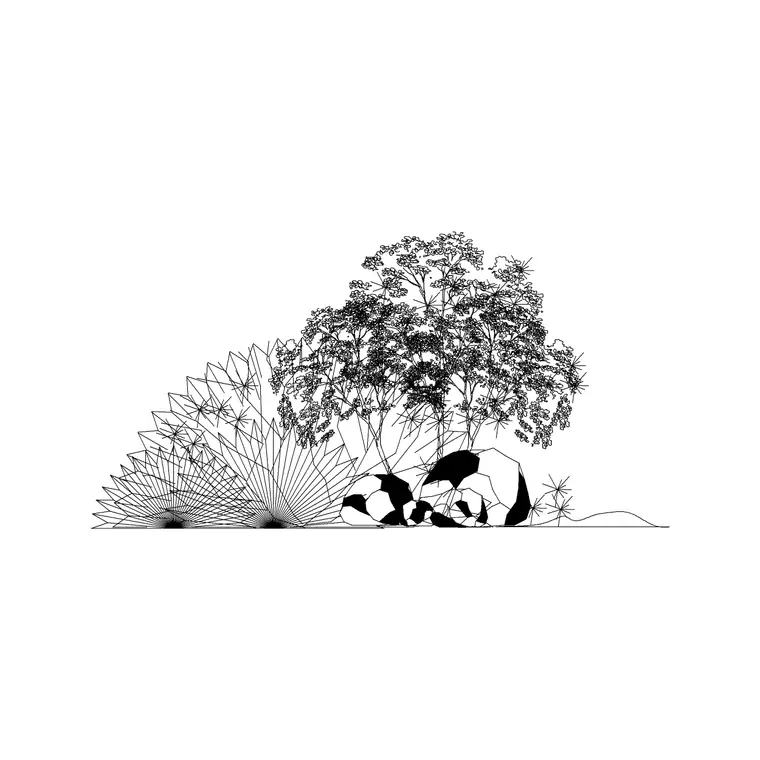
Stone and rock landscaping blocks span a few related elements. Individual boulders and feature rocks are drawn as irregular organic shapes — a plan footprint seen from above, and an elevation profile for sections — so you can place a statement boulder or compose a rock grouping. Gravel and stone-chipping areas are drawn as hatches or stippled fills you apply to a bed. Stone edging, dry-stone walls and stepping stones round out the set as linear and repeated elements.
Unlike planting, stone doesn't grow or change, so the symbols are about form and texture rather than spread over time. The irregular outlines and natural-looking groupings are what stop a rock garden reading as a row of identical circles. Keeping a handful of different boulder shapes lets a stone composition look found and natural rather than manufactured.
Views and what's included
Stone sets typically include plan and elevation for the three-dimensional elements (boulders, feature rocks, stepping stones) and hatches or fills for the area elements (gravel, chippings, cobbles). The plan view lays out the rock garden or gravel bed from above; the elevation shows boulder profiles in a section or a water-feature detail.
The symbols sit on hard-landscape layer conventions so rock outlines, gravel hatch and edging can occupy separate layers from the planting. That separation matters because the stone and the plants are usually drawn on the same plan but scheduled and read differently. Files target AutoCAD 2004 format and open across AutoCAD, AutoCAD LT, BricsCAD, DraftSight and free DWG viewers, so a hard-landscape plan opens cleanly anywhere.
Typical stone and rock sizing
Scale to the real stone. As references: a decorative cobble or small rock spans roughly 0.1–0.3 m; a medium landscape rock 0.4–0.8 m; a feature or specimen boulder 1.0–2.0 m or more across, often partly buried so the visible portion is smaller than the whole. Gravel and chipping beds are measured by area, and stepping stones by their plan size and spacing along a path.
For a believable rock grouping, vary the boulder sizes and bury them to different depths — in plan, that means overlapping the rock with the surrounding gravel hatch so it looks set into the ground rather than dropped on top. A boulder drawn floating cleanly on a blank ground reads as unconvincing; one nestled into gravel and planting reads as placed by a designer.
How to insert and compose with stone
Blocks are drawn full size in millimetres, so set insertion units to Millimeters (type UNITS) first. Place boulders with INSERT, picking the centre as the insertion point, then rotate and mirror them so repeated shapes don't read as copies. Draw the gravel or chipping bed as a closed polyline and apply the stone hatch to fill it, with the boulders sitting over the hatch so they nestle into the bed.
Keep stone on hard-landscape layers separate from planting, so you can produce a clean hard-landscape plan and a combined planting plan from the same drawing. For stepping stones, array the block along the path line at a comfortable stride spacing. When a rock grouping or a stone-detail area works, WBLOCK it for reuse in similar features across the scheme.
Where stone and rock blocks are used
Stone and rock blocks appear on rock and gravel gardens, xeriscapes, Japanese and naturalistic gardens, water-feature and stream details, SuDS and rain-garden schemes, and any landscape using boulders, gravel or stone edging as a design element. They also feature in hard-landscape and external-works drawings where stone forms paths, edges and accents.
Landscape architects use them to design and communicate the hard, permanent structure of a scheme; architects use them to give buildings a naturalistic stone setting; ecological and drainage designers use rock and gravel in rain gardens and erosion control. Combine stone blocks with the planting blocks they sit among — cacti for xeriscapes, ground cover and grasses for naturalistic schemes, trees and shrubs for structure — to draw the complete landscape.
Free download
Browse the full library — DWG & DXF, no signup.
Questions
Frequently asked
What's included in a stone and rock landscaping block set?+
Individual boulders and feature rocks in plan and elevation, gravel and stone-chipping hatches for beds, and stone edging, dry-stone walls and stepping stones. Together they let you compose the hard-landscape elements that planting is set against.
How do I make a rock grouping look natural?+
Vary the boulder sizes, rotate and mirror repeated shapes, and overlap each rock with the surrounding gravel hatch so it reads as set into the ground rather than dropped on top. A boulder nestled into gravel and planting looks placed by a designer.
Are the stone and rock CAD blocks free for commercial use?+
Yes. They download free in DWG and, where available, DXF, with no signup, no watermark and no attribution requirement, and they are cleared for commercial project use.
What size should I draw a feature boulder?+
Scale to the real stone: roughly 0.1–0.3 m for a cobble, 0.4–0.8 m for a medium rock, and 1.0–2.0 m or more for a feature boulder — often partly buried, so the visible part is smaller than the whole stone.
Related downloads
Blocks for this guide
Popular blocks to download
Related categories
Related guides
Block landing
Free Flower Plant CAD Blocks — DWG Download
Free flower plant CAD blocks in DWG and DXF — flowering annuals and perennials in plan and elevation for AutoCAD landscape plans. No signup, commercial OK.
Block landing
Free Flowering Shrub CAD Blocks — DWG Download
Free flowering shrub CAD blocks in DWG and DXF — ornamental shrubs in plan and elevation for AutoCAD planting and site plans. No signup, commercial OK.
Block landing
Free Herb Plant CAD Blocks — DWG Download
Free herb plant CAD blocks in DWG and DXF — herbs for kitchen gardens, raised beds and planters, in plan and elevation for AutoCAD. No signup, commercial OK.