Block landing · pot plant top view cad block
Free pot plant (top view) CAD blocks for AutoCAD in 2026
By Sumana Kumar · Published 3 Jan 2026 · Updated 4 Mar 2026
A pot plant seen from above is one of the small details that makes an interior floor plan feel lived-in: the planter in a reception corner, the row of pots along a balcony, the greenery softening an office breakout. A pot-plant top-view CAD block gives you that detail as a clean plan symbol — the pot rim and the foliage spilling over it, seen from directly above. This page collects free pot-plant top-view blocks in DWG and DXF, drawn to scale and free for personal and commercial work, with no signup and no watermark.
The top view is specifically the view a floor plan needs. When you're laying out a room from above, a potted plant has to read as a circle or square of foliage with a recognisable pot edge, sitting at the right footprint against furniture and walls. Use these blocks to dress interior plans, balcony and terrace layouts, reception and lobby plans, and any drawing where a little greenery makes the space believable — without it ballooning the file or fighting the architecture.
What a top-view pot plant block shows
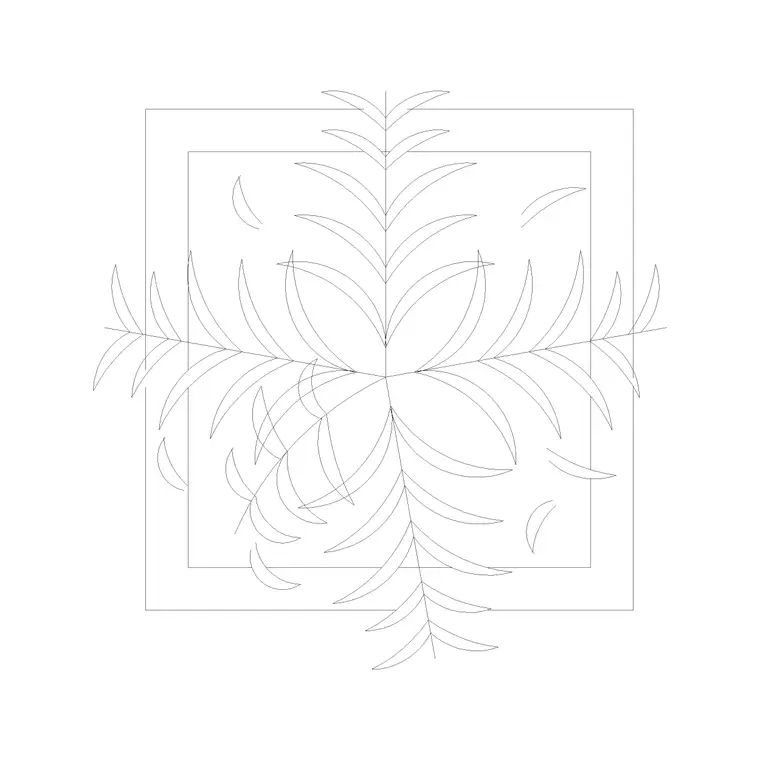
A top-view pot plant block shows the plant and its container as seen from above: an outer ring or square for the pot rim, and inside or overflowing it a foliage texture — a rosette, a soft cloud, or radiating leaves — that reads as a planted pot at a glance. The insertion handle is normally the centre of the pot, so it drops onto a planning point cleanly.
This is deliberately different from an elevation pot plant, which shows the pot and the plant standing up from the side. The top view is what a floor plan uses; the elevation is what an interior elevation or section uses. Knowing you want the top view for layouts is the key choice — it's the view that sits correctly among furniture seen from above.
Views and what's included
These blocks are plan/top-view by definition. A typical set offers a few pot sizes — small desk pots, medium floor planters, large statement containers — and a couple of foliage styles so the greenery doesn't all look identical across a plan. Some sets pair the top view with a matching elevation in the same family for when you also need the section.
The pot rim, the foliage and any saucer sit on sensible layers so you can recolour or simplify the symbol without changing its footprint. Files target AutoCAD 2004 format and open in AutoCAD, AutoCAD LT, BricsCAD, DraftSight and free DWG viewers, so the planter you place reads the same wherever the plan is opened.
Typical pot and foliage sizing
Scale to the container and the plant it holds. As references: a small desk or shelf pot is roughly 0.1–0.2 m across; a medium floor planter 0.3–0.5 m; a large statement pot or trough 0.5–0.9 m or more. The foliage usually spreads a little wider than the pot rim, so the symbol's overall footprint is the canopy, not just the container.
When you place pots against furniture or in a corner, it's the foliage footprint that governs clearance, so size the block to the spread you actually expect — a mature indoor specimen can overhang its pot considerably. For a row of identical pots, keep the size consistent; for a casual grouping, vary the pot sizes so the cluster looks collected rather than bought as a set.
How to insert and place pots on a plan
Blocks are drawn full size in millimetres, so set insertion units to Millimeters (type UNITS) before placing. Run INSERT, pick the pot centre as the insertion point, and click where the planter sits — typically a corner, beside a sofa, along a window, or flanking an entrance. Rotate as needed, though a round pot reads the same at any angle.
Keep pot plants on a furniture or planting layer rather than layer 0, so you can toggle the greenery off for a technical plan and on for a furnished or presentation plan. For a repeating run of pots along a balcony or counter, ARRAY the block at a set spacing. A potted plant placed this way is light, removable and consistent across every plan it appears on.
Where top-view pot plants are used
Top-view pot plants dress nearly every interior plan: office breakouts and reception areas, hotel lobbies, restaurant and café floor plans, retail interiors, residential living spaces, and balcony and terrace layouts. Outdoors in plan, they show containerised planting on roof terraces, courtyards and hard-landscaped areas where there are no beds.
Interior designers and architects use them to make furnished plans feel inhabited and to signal where greenery softens a space; FF&E and fit-out drawings use them to schedule planters as items. Combine top-view pots with furniture, fixture and people blocks to bring an interior plan to life, and with paving and outdoor-furniture blocks for terraces and courtyards.
Free download
Browse the full library — DWG & DXF, no signup.
Questions
Frequently asked
Why use a top-view pot plant rather than an elevation one?+
Because floor plans are drawn from above. A top-view pot plant reads correctly among furniture and walls seen in plan, where it shows as a pot rim with foliage. Use an elevation pot plant only for interior elevations and sections, where the planter is seen from the side.
What pot sizes do the blocks come in?+
Typically a range — small desk pots, medium floor planters and large statement containers — so a plan doesn't show every pot at the same size. The foliage usually spreads a little wider than the pot rim, which is the footprint that governs clearance.
Are the pot-plant CAD blocks free for commercial use?+
Yes. They download free in DWG and, where available, DXF, with no signup, no watermark and no attribution requirement, and they are cleared for commercial project use.
What layer should I put pot plants on?+
Put them on a furniture or planting layer rather than layer 0, so you can freeze the greenery for a technical plan and thaw it for a furnished or presentation plan from the same drawing.
Related downloads
Blocks for this guide

Popular blocks to download
Related categories
Related guides
Block landing
Free Flower Plant CAD Blocks — DWG Download
Free flower plant CAD blocks in DWG and DXF — flowering annuals and perennials in plan and elevation for AutoCAD landscape plans. No signup, commercial OK.
Block landing
Free Flowering Shrub CAD Blocks — DWG Download
Free flowering shrub CAD blocks in DWG and DXF — ornamental shrubs in plan and elevation for AutoCAD planting and site plans. No signup, commercial OK.
Block landing
Free Herb Plant CAD Blocks — DWG Download
Free herb plant CAD blocks in DWG and DXF — herbs for kitchen gardens, raised beds and planters, in plan and elevation for AutoCAD. No signup, commercial OK.