Block landing · planter cad block
Free planter with plant CAD blocks for AutoCAD
By Sumana Kumar · Published 12 Jul 2024 · Updated 5 Feb 2026
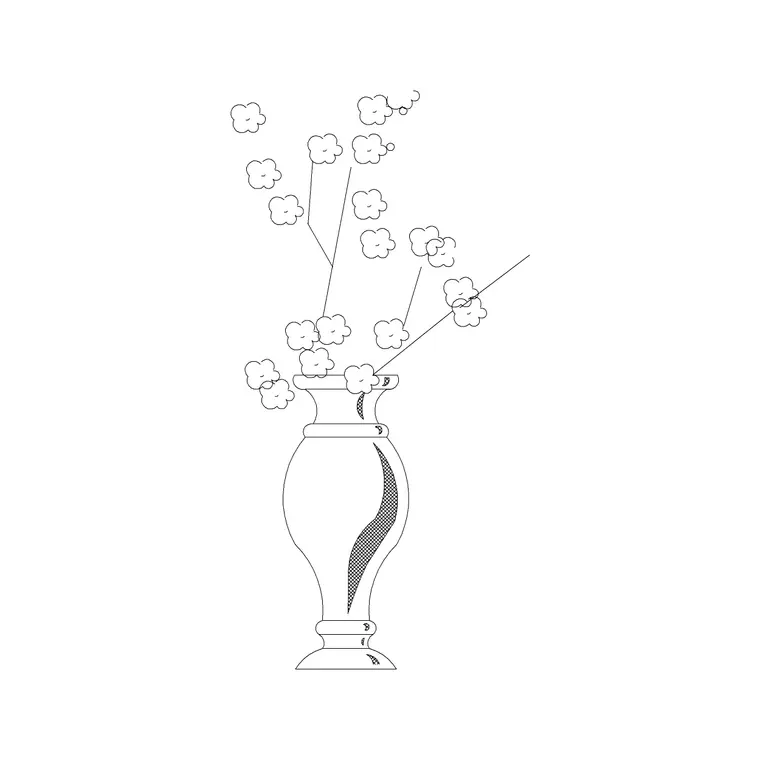
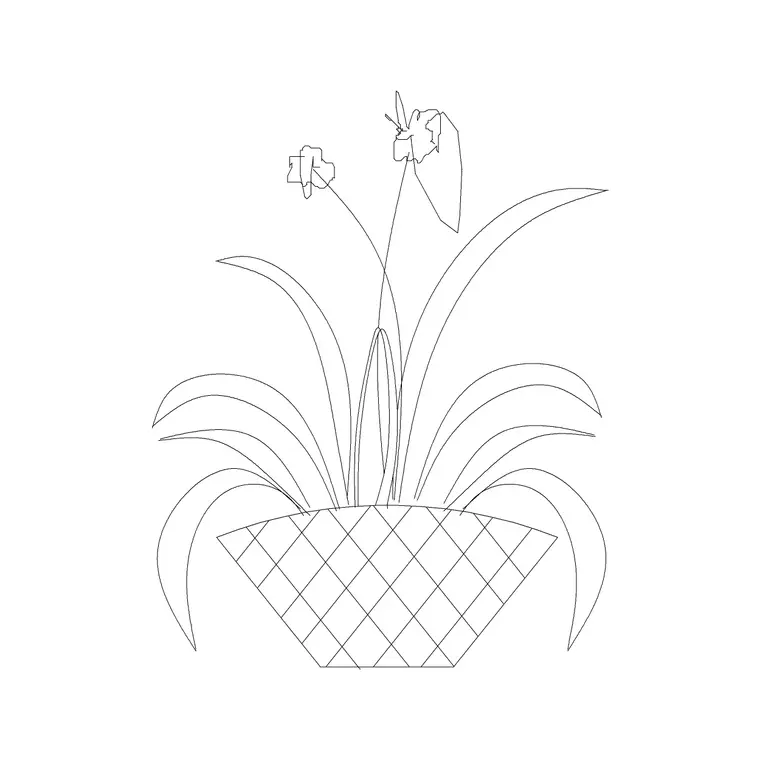
A planter is a piece of hard landscape and a piece of soft landscape at once — a container that also carries planting — which is exactly why a combined planter-with-plant block is so handy. Instead of placing a pot and then dropping a plant on top of it, you get the whole element in one insertion, scaled and ready. This page collects free planter with plant CAD blocks in DWG and DXF, drawn in plan and elevation at true millimetre size for AutoCAD 2004 or later. They are free for personal and commercial work, with no signup, no watermark and no attribution.
Reach for them to furnish a terrace or roof garden, line an entrance, define a café spill-out zone, break up a large hardscape or screen a boundary where there is no open ground to plant into. Because the container is drawn to scale along with its planting, you can check that the planter actually fits the space — and that there is room to walk around it.
What a planter-with-plant block includes
This block bundles two things: the container outline (a box, trough, bowl or tall pot) and the planting it holds, drawn together as one element. In plan you see the rim of the planter with the foliage mass within or spilling over it; in elevation you see the container's height and material line with the plant rising above it. The container footprint is what governs how the planter fits a paved space, so the block is sized to the pot's real outside dimensions.
Because it is a single element, you place a furnished, planted container in one move — useful on terrace and public-realm plans where planters do the job that beds do at ground level.
Plan for layout, elevation for the object itself
On a terrace or hardscape plan you work in plan: the planter rim placed on the paving, spaced to leave circulation, and repeated to line an edge. The plan block is what you array along a balcony rail, down a café frontage or around a roof terrace.
Elevation matters because a planter is a designed object with a visible height, material and profile. An elevation block lets you show how tall the planter and its planting stand against a façade, a balustrade or seated people — important where planters double as low screens or as informal seating edges. Many downloads ship both views; the container and the plant are on separate layers so you can recolour the pot material or simplify the planting independently.
Planter sizes to design around
Planters come in a wide range, so use these as design ranges. Small pots and bowls: roughly 300–500 mm across. Medium planters and troughs: 400–600 mm wide and 600–1200 mm long. Large architectural planters and raised troughs: 600–1000 mm wide and up to 1800 mm or more long, often 600–900 mm tall so they read as a screen or a seat edge. Planting rises above the rim by anything from a low 200 mm mound to a 1–2 m shrub or small multi-stem.
These are ranges to draw against, not fixed specs — planters are made in countless sizes. The value of a scaled block is the fit check: drop it on the paving and you see at once whether the planter leaves the clear width a route needs (commonly 1000–1200 mm for a comfortable walking route past it).
Inserting planters and lining a space
The blocks are full size in millimetres. Insert at scale 1 in a millimetre drawing, or set INSUNITS to millimetres so AutoCAD rescales on insertion. Run INSERT, snap the insertion point to a sensible handle — often a corner or the centre of the rim — and place the first planter, rotating it to sit square with the paving or the building line.
To line an edge with identical planters, use a rectangular or path array along the boundary so the spacing is exact. Where planters define a route or a café zone, place them deliberately and keep checking the clear gap between them against the circulation the space needs. Mixing a couple of planter sizes and rotating the planting slightly stops a run of identical containers looking mechanical.
Where planter blocks are used
Planter-with-plant blocks are the soft-landscape solution wherever you cannot plant into the ground: roof terraces and balconies, paved courtyards and plazas, café and restaurant spill-out areas, shopping streets and pedestrianised zones, office forecourts and entrance lobbies, and interior landscaping in atria and receptions. Landscape architects and urban designers use them to green hard spaces; architects place them on terrace, roof and entrance plans; interior designers use them to bring planting indoors.
Pair them with the accessories category for the matching containers and street furniture, and with the trees-and-plants category when the planters hold larger shrubs or small trees rather than seasonal planting.
Layers, counts and schedules
Keep the planters on a dedicated layer — or split them, with the container on a furniture/hardscape layer and the planting on a planting layer — so each drawing in a set reads cleanly and you can freeze the planting for a hard-landscape plan. Because a planter is both an object and a plant, this split is genuinely useful: the procurement of the container and the supply of the plant are usually two different orders.
Each planter is a block reference, so COUNT and QSELECT tally them for a schedule — both a planter schedule (containers to buy) and, via attributes, a plant schedule (what goes in them). Attribute the blocks with a type code to extract those straight from the drawing. When a run of planters works, WBLOCK it as a reusable group so the same planted edge carries into the next terrace or plaza scheme.
Free download
Browse the full library — DWG & DXF, no signup.
Questions
Frequently asked
What does a planter-with-plant CAD block include?+
Both the container and its planting drawn as one element — the planter rim and the foliage in plan, and the pot height, material line and plant in elevation. The container and the plant sit on separate layers so you can edit each independently.
What sizes are planter blocks drawn at?+
Across a broad range: roughly 300–500 mm for small pots, 400–600 mm for medium troughs, and up to 1800 mm or more long for large architectural planters. They are drawn full size in millimetres, so scale them to the container you are specifying.
How much clearance should I leave around a planter?+
Keep the clear width a route needs past the planter — commonly 1000–1200 mm for a comfortable walking route. Drop the scaled block onto the paving and check the gap visually rather than by calculation.
Are the planter CAD blocks free for commercial use?+
Yes. Every planter block downloads free in DWG and DXF with no signup, no watermark and no attribution requirement, and they are cleared for commercial project use.
Related downloads
Blocks for this guide
Related categories
Related guides
Block landing
Free Flower Plant CAD Blocks — DWG Download
Free flower plant CAD blocks in DWG and DXF — flowering annuals and perennials in plan and elevation for AutoCAD landscape plans. No signup, commercial OK.
Block landing
Free Flowering Shrub CAD Blocks — DWG Download
Free flowering shrub CAD blocks in DWG and DXF — ornamental shrubs in plan and elevation for AutoCAD planting and site plans. No signup, commercial OK.
Block landing
Free Herb Plant CAD Blocks — DWG Download
Free herb plant CAD blocks in DWG and DXF — herbs for kitchen gardens, raised beds and planters, in plan and elevation for AutoCAD. No signup, commercial OK.