Block landing · planter pot cad block
Free planter pot CAD blocks for AutoCAD
By Saumyajit Maity · Published 16 Apr 2024 · Updated 2 Jun 2026
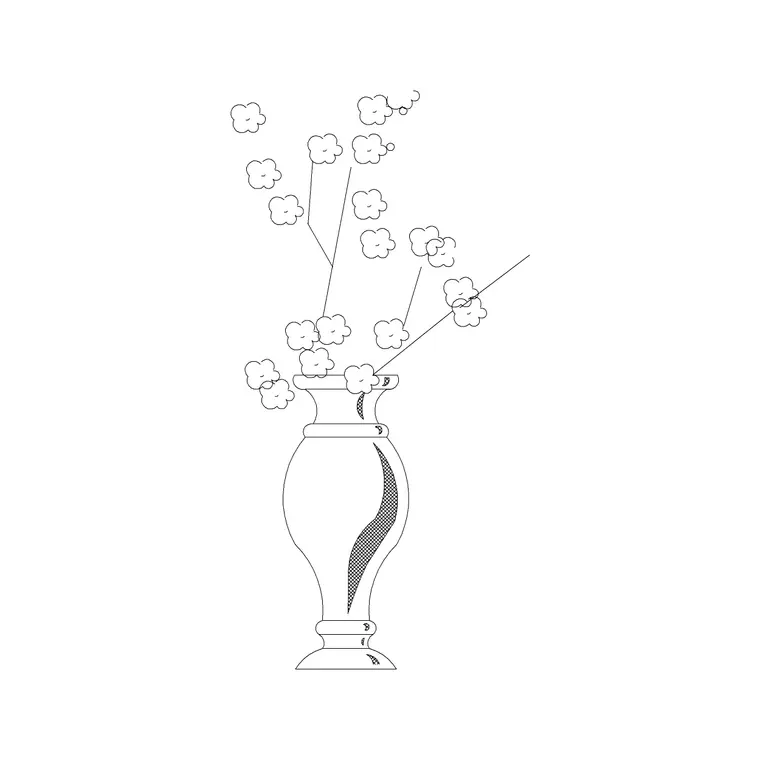
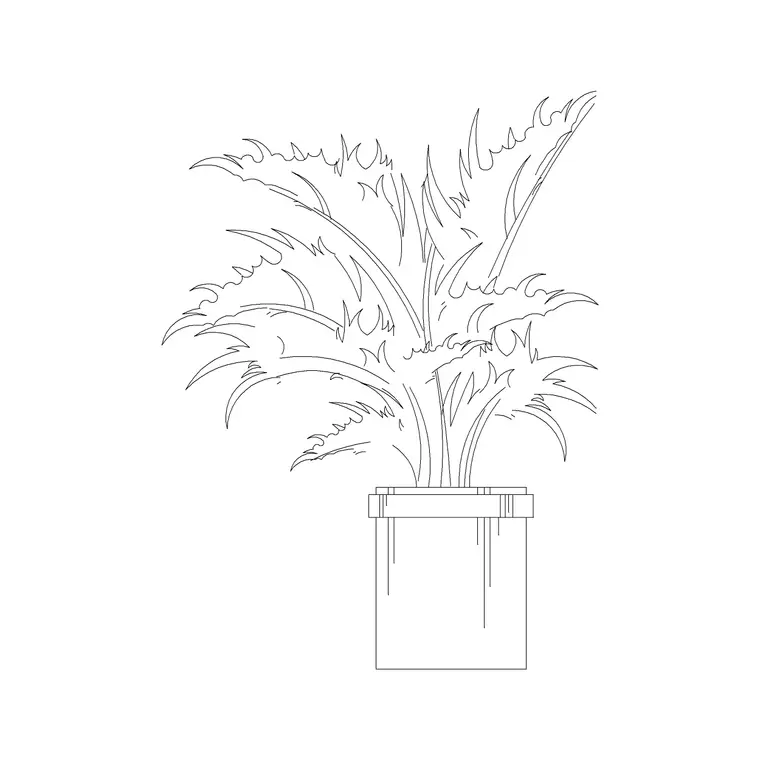
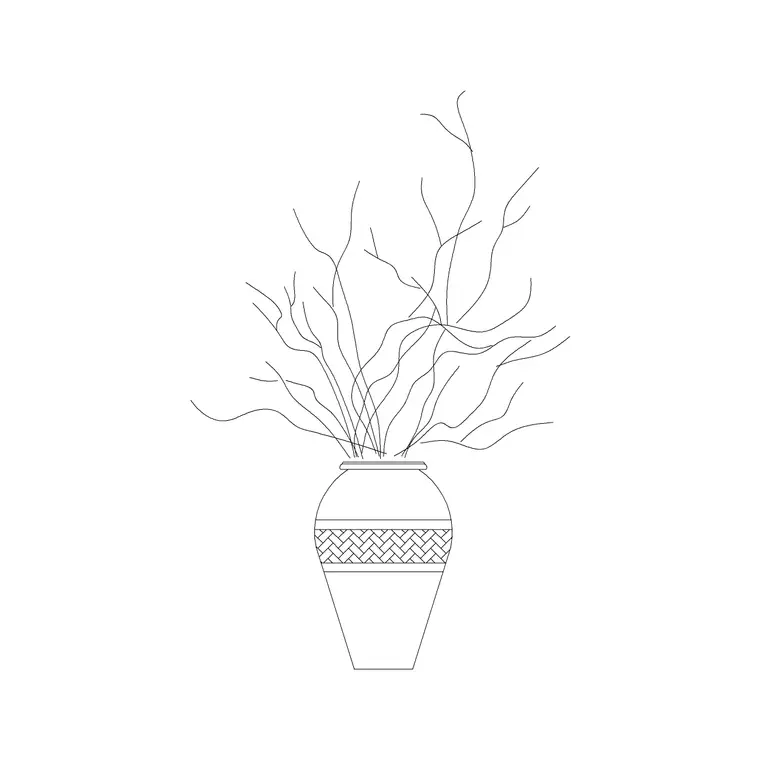
A planter pot is the block that brings living greenery into a drawing, and unlike a cut-flower vase it implies a permanent feature — a fixed point of planting that shapes how a space is used. A row of planters defines a circulation route in a lobby; a large pot anchors a corner of a courtyard; a cluster of small pots softens a windowsill or a balcony. This page collects free planter pot CAD blocks in DWG and DXF — cement and stone planters, tapered pots, and planters already filled with foliage or flowers — drawn to scale and ready for AutoCAD 2004 or later. Everything is free for personal and commercial work, with no signup and no watermark.
Planters straddle the line between decor and the building itself. A small pot on a desk is pure styling; a large fixed planter in a lobby is often a built feature with its own footprint, drainage and weight to think about. These blocks read in both plan and elevation, so you can lay out planting positions on a floor plan and show the pots face-on in interior or courtyard elevations. Use them to green up offices, lobbies, atriums, balconies, courtyards and roof terraces.
Planter versus decorative vase
It is worth separating the two, because they do different jobs in a drawing. A decorative vase holds cut flowers and is pure styling — a temporary accent on a surface. A planter pot holds a living plant in soil, which makes it heavier, often larger, and frequently a more permanent fixture that affects the layout around it.
That difference shows up in the blocks. Planter blocks tend to be chunkier — a cement pot with a thick rim, a tapered terracotta form, a deep trough — and the planting inside reads as an established plant (a small tree, a fern, a cluster of foliage) rather than a cut-flower spray. When you want greenery that belongs to the architecture, reach for a planter; when you want a styling accent on a console, reach for a vase.
Plan view for layouts, elevation for greenery
Use the plan-view planter when you are positioning greenery on a floor plan — a line of pots screening a meeting area, planters marking the edge of a café terrace, or a grid of pots in an atrium. At plan scale the pot is a circle (or square, for a box planter) and the plant may show as a light canopy hatch above it, which helps a busy commercial plan read as a designed, softened space.
Use the elevation planter when you draw the room or courtyard face-on. Here the pot's profile and the height of the plant matter: a tall plant in a floor pot fills vertical space beside a reception desk, while a row of low trough planters defines a boundary at waist height. Several blocks here ship both views, so a single download covers the planting plan and the matching elevation.
Typical planter sizes to design around
Planters range from desktop pots to architectural features. Useful figures: a small desk or shelf pot 100–180 mm across and 120–200 mm tall; a medium floor pot 300–450 mm across and 350–600 mm tall; a large architectural planter or trough 500–800 mm across (or 800–1500 mm long for a trough) and 500–900 mm tall. The plant itself adds height — an indoor tree in a 450 mm pot might reach 1500–2000 mm overall.
When you place planters in a circulation space, remember the pot's footprint eats into the clear width: a 450 mm pot against a 1200 mm corridor leaves only 750 mm of passing space. Because the blocks are drawn full size, dropping them into the plan shows those clearances immediately, so a row of lobby planters does not accidentally choke the route people actually walk.
How to insert and place the block
These planter blocks are drawn full size in millimetres. Insert at scale 1 in a millimetre drawing, 0.001 in a metre drawing, or set INSUNITS to millimetres so AutoCAD rescales automatically. Use INSERT or drag the DWG from a tool palette, and pick the centre of the pot base as the insertion point.
In plan, place the pot where you want the planting and check the footprint against the surrounding clearances. In elevation, snap the base of the pot to the floor line so it rests on the ground rather than floating, and let the plant rise to its full height. To create a screen or a defined edge, use ARRAY to repeat a planter at a regular spacing along a line — a path array works neatly for a curved terrace edge. For a natural cluster, copy the block and vary the scale and the plant content between instances so the group does not look stamped.
Where planter pot blocks are used
Planters appear across commercial and residential interiors and exteriors: office floors and breakout zones, hotel and corporate lobbies, atriums and lift lobbies, restaurant and café terraces, retail malls, balconies, roof terraces and courtyards. Indoors they soften hard architecture and define zones without building walls; outdoors they bring greenery to surfaces where you cannot plant into the ground, like podium decks and balconies.
Pair planter blocks with the trees-and-plants category for ground-planted greenery, and with the decorative-vase and furniture blocks in accessories to style interiors fully. In a courtyard or terrace drawing, planters work alongside paving and outdoor-furniture blocks to compose a complete external scene. Because every block is free and licence-clear, the same planter carries from a concept landscape sketch to a coordinated fit-out drawing.
Layers, schedules and structural reminders
Keep planters on a dedicated planting or landscape layer so you can toggle greenery on and off independently of the architecture. For interiors this lets you show a bare 'shell' plan and a softened, planted version from the same file; for landscape work it keeps the soft planting visually separate from hard landscape and paving.
There is a practical coordination point with large planters that loose decor does not raise: a big planter full of wet soil is heavy, and a fixed architectural planter may need to sit over structure, have a drainage outlet, and be coordinated with the waterproofing on a podium or terrace. Drawing the planter as a scaled block with a clear footprint gives the engineer and the landscape designer something real to coordinate against. If you tag each planter with an attribute — a size or plant code — you can extract a planting schedule directly from the drawing, which the landscape contractor and the maintenance team both find useful. Loose, unplanted decorative pots, by contrast, can stay off any schedule as pure styling.
Free download
Browse the full library — DWG & DXF, no signup.
Questions
Frequently asked
What's the difference between a planter and a vase block?+
A planter holds a living plant in soil and is often a fixed, heavier feature with its own footprint. A decorative vase holds cut flowers and is pure styling. Reach for a planter when the greenery belongs to the architecture.
Do planter blocks come in plan and elevation?+
Yes. The plan view marks the pot's footprint and planting position; the elevation shows the pot profile and the plant height. Many blocks here ship both views in one DWG.
What units are the planter blocks drawn in?+
Full size in millimetres. Insert at scale 1 in a millimetre drawing, 0.001 in a metre drawing, or set INSUNITS to millimetres so AutoCAD rescales automatically on insertion.
Are the planter pot blocks free for commercial use?+
Yes. Every planter block downloads free in DWG and DXF with no signup, no watermark and no attribution requirement, and they are cleared for commercial project use.
Related downloads
Blocks for this guide
Related categories
Related guides
Block landing
Free Picture Frame CAD Blocks — DWG Download
Download free picture frame CAD blocks in DWG and DXF — framed photos drawn in elevation for AutoCAD interior drawings. No signup, commercial use OK.
Block landing
Free Wall Art & Painting CAD Blocks — DWG
Download free wall art and painting CAD blocks in DWG and DXF — abstract art and canvases for AutoCAD interior elevations. No signup, commercial OK.
Block landing
Free Decorative Vase CAD Blocks — DWG Download
Download free decorative vase CAD blocks in DWG and DXF — designer vases and vases with flowers in plan and elevation for AutoCAD. No signup, commercial OK.