How-to guide · how to insert a floor lamp block in autocad
How to insert a floor lamp block in AutoCAD
By Saumyajit Maity · Published 18 Feb 2026 · Updated 15 Mar 2026
A floor lamp is a small but useful block that finishes a living-room or lobby layout — it sits beside a sofa, in a reading corner or next to an accent chair, and on an interior elevation it adds height and a light source to a wall. Inserting one in AutoCAD is quick; the things worth getting right are tucking it neatly against the furniture or wall and choosing the correct view, since a floor lamp reads very differently in plan than in elevation. This guide covers both.
We will use the plan view for the layout work and the elevation for interior elevations, because the catalogue's floor lamp is drawn as an elevation block and a small plan footprint is what you place in the layout. The same workflow applies to any standing lamp — a tripod lamp, an arc lamp or a slim reading lamp — only the silhouette changes.
Step 1 — Download the floor lamp in the right view
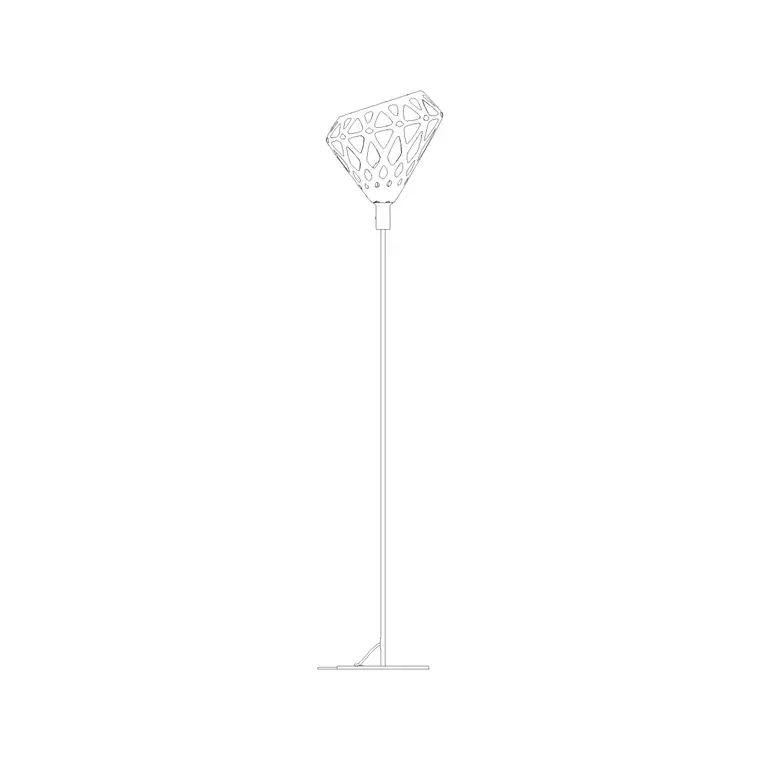
For a furniture layout, download the plan view — a small circle or footprint for the base, seen from above. For an interior elevation, grab the elevation view, which shows the stem, shade and base from the front. The lighting category carries floor lamp elevations drawn to scale and free for commercial use.
Save it to a reusable library folder and open it once to see the base footprint and the insertion origin. A floor lamp has a small footprint, so the base centre is the natural reference. The blocks here are drawn in millimetres.
Step 2 — Set units so it lands at real size
Type UNITS and set 'Insertion scale' to Millimeters. A floor lamp typically has a base 250–400 mm across and stands 1400–1800 mm tall, so true units keep the elevation proportionate to the furniture and the wall beside it.
If the drawing is unitless the block inserts raw and you scale by hand. With INSUNITS set, AutoCAD rescales automatically and the lamp arrives sized correctly against the sofa or chair it accompanies.
Step 3 — Insert and tuck it beside the furniture
Run INSERT (or I), or open the Blocks palette, browse to the floor lamp and select it. Keep 'Specify On-screen' on for the insertion point, then place it where it belongs — typically tucked against the end of a sofa, in a corner beside an accent chair, or against a wall in a reading nook. Snap the base near the furniture edge so it reads as deliberately placed.
It arrives as one block reference. For an elevation, sit the base on the floor line of the elevation so the lamp stands on the ground rather than floating, the same way you would seat any elevation block.
Step 4 — Orient and check clearance
In plan, rotate the lamp about its base if it has a directional shade or an arc that reaches over a chair, so the light falls where it is meant to. An arc lamp in particular sweeps out over a seat, so check that the arc does not clash with a walkway or a coffee table.
Keep the lamp out of the circulation route — a floor lamp in the middle of a walkway is an obstacle, so tuck it against furniture or into a corner where it is out of the path. The small footprint makes this easy, but it is worth a glance once the lamp is placed.
Step 5 — Layer it with the furniture and reuse the setting
Move the floor lamp onto a furniture layer — something like A-FURN — with its own colour, so it freezes and thaws with the rest of the loose furniture. On an interior elevation it can sit on the same furniture or FF&E layer. Keeping it off layer 0 keeps your prints clean.
A floor lamp usually accompanies a sofa or chair, so once a reading corner looks right you can group the chair, side table and lamp and copy them as a set, or WBLOCK the arrangement for reuse. Because the lamp is a block reference, a later edit to its definition updates every instance at once.
Plan footprint versus elevation height
A floor lamp is one of those blocks where the plan and the elevation tell very different stories, and it helps to keep both in mind. In plan the lamp is almost nothing — a small base circle 250–400 mm across that takes up barely any floor, which is why it tucks so easily into a corner. That small footprint can fool you into placing it carelessly, but in elevation the same lamp is a tall vertical element 1400–1800 mm high that draws the eye and balances a wall, so its position relative to the sofa and the window matters more than the footprint suggests.
When you build an interior elevation, sit the lamp where the plan put it and check the shade height against the window head and the artwork line, so the lamp sits comfortably among the wall elements rather than colliding with them. Coordinating the tiny plan footprint with the prominent elevation profile is what makes the lamp read as a deliberate part of the scheme in both drawings.
Common floor lamp mistakes
Units, as always: a lamp the height of a person versus the height of a thimble is an INSUNITS mismatch from Step 2. The second is mixing views — a plan footprint dropped onto an elevation reads as a meaningless circle, and an elevation lamp on a plan looks wrong, so match the view to the drawing.
The third is parking the lamp in a walkway; tuck it against furniture or into a corner instead. On an elevation, the last pitfall is floating the base above the floor line — always seat it on the ground so the lamp stands properly. Keep it on the furniture layer so it never gets stranded on a services or lighting sheet by mistake.
Free download
Browse the full library — DWG & DXF, no signup.
Questions
Frequently asked
Plan or elevation for a floor lamp?+
Use the plan view (small base footprint from above) in furniture layouts, and the elevation view (stem, shade and base from the front) in interior elevations where the lamp is seen against the wall.
Where should a floor lamp sit in a layout?+
Tuck it against the end of a sofa, in a reading corner beside an accent chair, or against a wall — out of the circulation route. Its small footprint makes this easy, but keep it clear of walkways.
Why did my floor lamp insert at the wrong scale?+
It is a units mismatch. Type UNITS, set Insertion scale to Millimeters, and re-insert. With INSUNITS correct, AutoCAD rescales the lamp to its true height and base size automatically.
Which layer should a floor lamp go on?+
Put it on the furniture or FF&E layer (for example A-FURN) so it freezes and thaws with the loose furniture, rather than on layer 0 or a services layer where it would be hard to manage on prints.
Related downloads
Blocks for this guide
Popular blocks to download
Related categories
Related guides
How-to guide
How to Copy a Block Multiple Times in AutoCAD
Copy a block many times fast in AutoCAD — the multiple-copy COPY mode, the Array suboption for equal spacing, and when to use COPY, arrays or blocks instead.
How-to guide
How to Place Street Lights Along a Road in AutoCAD
Lay out street lights along a road in AutoCAD — path-array lighting columns at the right spacing, stagger or oppose them, and keep them on their own layer.
How-to guide
How to Insert a Chandelier Block in AutoCAD
Insert a chandelier block in AutoCAD — download the DWG, match units, run INSERT, centre it on the table and set the drop on the RCP.