How-to guide · how to insert a wardrobe block in autocad
How to insert a wardrobe block in AutoCAD
By Saumyajit Maity · Published 28 Dec 2024 · Updated 22 Jun 2026
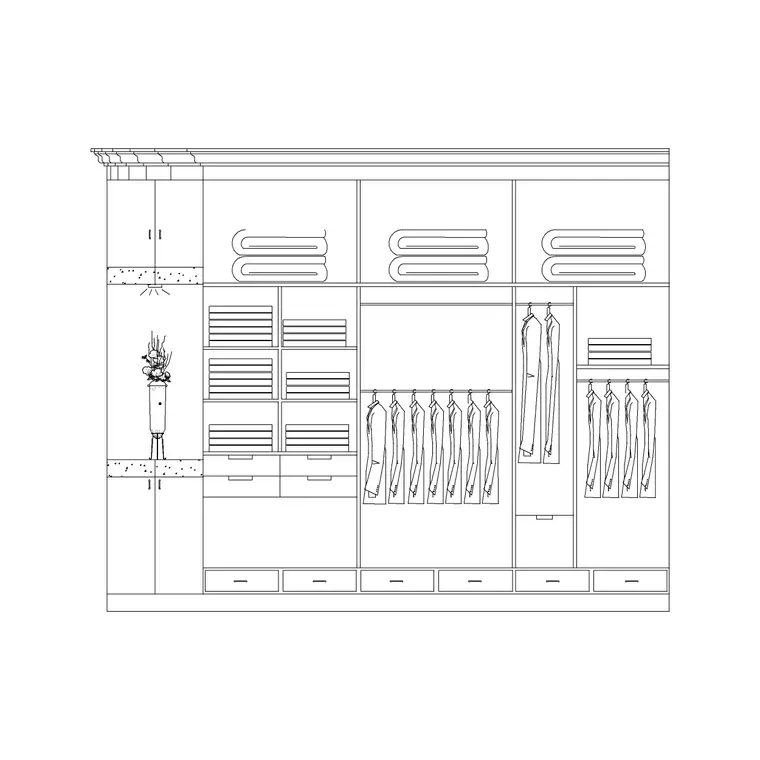
A wardrobe is a deceptively fiddly block to place because it is one of the few furniture items where the door matters as much as the box. A hinged wardrobe needs swing clearance in front; a sliding one doesn't, but it needs the whole run drawn to the right length. Get the depth wrong and the wardrobe either blocks the bedroom door or leaves an awkward gap. This guide covers inserting a wardrobe block in AutoCAD and resolving those clearances so the bedroom actually works.
We will use a plan-view wardrobe as the example, since wardrobe layout is a plan exercise, and cover both freestanding units and fitted runs you stretch wall-to-wall. The door-swing checks here are the same ones you would apply to any cabinet with hinged doors.
Step 1 — Choose freestanding or fitted, and the door type
Decide what the wardrobe is. A freestanding wardrobe is a fixed-size box you place like any furniture; a fitted wardrobe is a run that fills an alcove or wall and is stretched to length. Then note the door type — hinged doors swing out and need clearance in front, while sliding doors stay within the cabinet depth and suit tight rooms. Multi-door units (commonly two, three, four or more doors) are sized accordingly.
Wardrobe depth is the figure to respect: most hold to roughly 580–650 mm deep so a hanging rail fits across, with width set by the number of doors at around 450–600 mm per door. Save the DWG to your library; it is drawn full size in millimetres.
Step 2 — Match units, then INSERT against the wall
Set UNITS to Millimeters for the insertion scale so AutoCAD rescales the block correctly. Run INSERT, browse to the wardrobe DWG, and choose it with the insertion point on 'Specify On-screen'. A back corner of the box is the handiest base point, because a wardrobe almost always sits with its back flush to a wall.
Click to place it near the chosen wall, then use MOVE with a perpendicular or nearest snap to push the back edge tight against the wall line. ROTATE it if the wall runs at an angle, typing the exact angle for a clean result.
Step 3 — Stretch a fitted wardrobe to the run length
If you are fitting a wardrobe into an alcove or along a whole wall, the block usually needs to grow to the available length. If it is a static block, use STRETCH: window the right-hand edge (or whichever side should move), and drag it to the wall so the carcass fills the run exactly. If it is a dynamic block with a length parameter, just pull the stretch grip to size — far cleaner, and the doors stay correctly proportioned.
After stretching, redistribute the doors so each leaf stays a sensible width; an over-stretched single door reads wrong and wouldn't be buildable.
Step 4 — Resolve the door swing or sliding clearance
This is the make-or-break check. A hinged wardrobe needs the door arc drawn in front so you can see it doesn't clash with the bed, a desk, or the bedroom door swing. Many wardrobe blocks include the swing as a thin arc on its own layer; if yours doesn't, draw a quick arc at the door width to test it. Allow enough clear floor in front for the door to open fully — at least the door's own width plus standing room.
A sliding wardrobe avoids all of that, which is exactly why it is specified in tight bedrooms. If the swing of a hinged unit clashes with the bed or the room door, switching the block to a sliding type is usually the cleaner fix rather than shuffling the whole room.
Step 5 — Layer it and coordinate with the bedroom
Put the wardrobe on the furniture layer so it freezes and thaws with the rest of the furniture. Then coordinate it with the room: a wardrobe and the bedroom door should not fight for the same swing space, and a wardrobe opposite the bed needs enough gap (ideally 700 mm or more) to stand and open a door comfortably.
Keep the wardrobe as a block reference so it can be counted and scheduled. For a repeated layout — say, identical fitted wardrobes in a run of student rooms or a hotel — WBLOCK the resolved unit and array it from a single definition so an edit propagates everywhere.
Common pitfalls with wardrobe blocks
The two errors that recur are ignoring the door swing and getting the depth wrong. Always draw or check the swing arc for a hinged wardrobe before you call the layout done — a wardrobe that can't open is a redraw waiting to happen on site. And respect the ~600 mm depth: pushing a shallower box in to 'save space' means the hanging rail won't take a coat hanger sideways.
A subtler trap is stretching the carcass but not the doors, leaving a block that looks fitted in outline but has doors that no longer add up to the width. If you stretch, fix the doors too — or use a dynamic wardrobe block built to keep the leaves proportioned as it grows.
Free download
Browse the full library — DWG & DXF, no signup.
Questions
Frequently asked
How deep should a wardrobe block be?+
Most wardrobes are drawn around 580–650 mm deep so a hanging rail fits across the carcass. Respect that depth when placing the block — a shallower box won't take a coat hanger sideways, even if it appears to save floor space.
How do I check the wardrobe door swing in AutoCAD?+
For a hinged wardrobe, make sure the door arc is drawn in front of the unit and check it doesn't clash with the bed or the bedroom door swing. If the block has no arc, draw a quick one at the door width to test the clearance.
How do I make a fitted wardrobe fill the whole wall?+
Use STRETCH on a static block to extend the carcass to the wall, then redistribute the doors to sensible widths. If it is a dynamic block with a length parameter, just pull the stretch grip and the doors stay proportioned.
When should I use a sliding wardrobe instead of hinged?+
Use a sliding wardrobe in tight bedrooms where a hinged door's swing would clash with the bed or the room door. Sliding doors stay within the cabinet depth, so they need no clear floor in front to open.
Related downloads
Blocks for this guide
Popular blocks to download
Related categories
Related guides
How-to guide
How to Insert a Bed Block in AutoCAD (Step by Step)
Insert a bed block in AutoCAD: pick the right mattress size, set units, place the headboard against the wall, and leave proper bedside and walkway clearance.
How-to guide
How to Insert a Dressing Table Block in AutoCAD
Insert a dressing table block in AutoCAD: place the vanity on the wall, leave stool pull-out space, align with the light, and draw the mirror in elevation.
Curated pack
Free Bedroom CAD Block Pack — DWG & DXF
Free bedroom CAD block pack in DWG and DXF — double beds, side tables, wardrobes and seating in plan and side view for AutoCAD. No signup, commercial OK.