Explainer · dwg vs dxf for laser cutting
DWG vs DXF for laser cutting
By Sumana Kumar · Published 26 Aug 2023 · Updated 2 Mar 2026
If you are sending a drawing to a laser cutter, the format question has a clear winner: DXF, almost every time. Laser and CNC machines are driven by CAM software, and CAM software overwhelmingly expects DXF, not DWG. But the answer is not just "export DXF and hope" — the version you choose and how you prepare the geometry decide whether the machine cuts a clean part or chokes on objects it can't understand.
This page walks through why DXF wins for laser cutting, when a DWG might still be acceptable, which DXF version to export, and how to get clean, closed, cut-ready geometry out of AutoCAD. The same logic applies to CNC routers, plasma cutters and vinyl cutters — anywhere a flat profile becomes a physical cut.
Why laser cutters prefer DXF
A laser cutter doesn't read your drawing directly; a piece of CAM or controller software does, and it converts your geometry into a cutting path. That software ecosystem standardised on DXF decades ago because DXF is an open, documented format that reliably preserves clean 2D geometry — the closed outlines, holes and cut lines a cutter actually needs.
DWG, by contrast, is AutoCAD's proprietary binary format. Some laser software can import it, but support is patchier, version-sensitive, and more likely to mangle or refuse a file than DXF is. When the whole point is to hand geometry to a non-AutoCAD machine, you want the universal exchange format — and that is DXF. It is the format every cut shop will ask you for.
When a DWG is still acceptable
Some modern laser-cutting workflows do accept DWG. Higher-end CAM packages and certain online cutting services will import a DWG and convert it for you internally. If your provider explicitly says they take DWG, you can send one — but you are relying on their conversion rather than controlling it yourself.
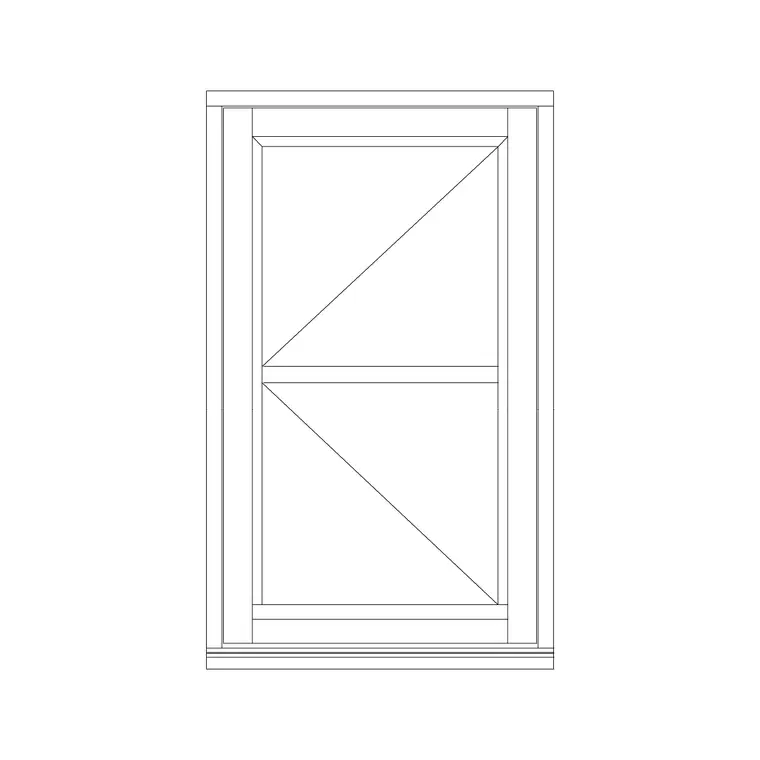
The safer habit is to control the conversion at your end by exporting DXF deliberately, so you know exactly what geometry the machine receives. If you only have a DWG block — like the door, window and symbol files here — opening it in AutoCAD (or a free tool) and saving out a DXF takes seconds and removes all the guesswork about what the cutter will accept.
Which DXF version to export
This is the detail that trips people up. DXF, like DWG, comes in versions, and for laser cutting an older version is usually best. Exporting to R12 DXF — or 2000-era DXF — strips out advanced object types and leaves plain lines, arcs, circles and polylines that any CAM package can read without confusion.
Newer DXF versions can carry objects a simple machine controller has never heard of, and the result is missing geometry or an import error. When a laser shop asks for "R12 DXF", this is exactly why. In AutoCAD, choose the version in the SAVEAS dialog under "AutoCAD DXF"; pick R12 unless the shop specifies otherwise, and you will rarely have a compatibility problem.
Preparing clean cut-ready geometry
A laser cuts exactly what you give it, so the geometry has to be clean. The biggest issue is open profiles: a shape that looks closed but is really separate line segments will confuse the cut order, or cut as open paths. Join your outlines into closed polylines (PEDIT > Join, or JOIN) so each cut profile is a single continuous loop.
Then prune anything that isn't a cut line. Remove construction lines, dimensions, text you don't want engraved, and stray duplicate lines stacked on top of each other (the OVERKILL command finds and deletes duplicates — a doubled line can make the laser cut the same path twice). Many shops use layer or colour conventions to separate cut, engrave and score; check what your cutter expects and put each operation on its own layer or colour before you export.
Units, scale and closed paths
Two physical-world checks save ruined material. First, units: the blocks here are drawn in millimetres, and most laser software expects millimetres, so confirm the cutter is reading your file at 1:1 in the right unit. A part that arrives 25.4 times too big or small is a classic millimetre-versus-inch units mismatch, not a drawing error.
Second, make sure every cut is a genuinely closed path where it needs to be — a bracket with an enclosed hole must have that hole as a closed loop, or the laser may not cut it as an interior cut. Run a quick visual check, join open ends, and do a small test cut on scrap if the part is valuable. Getting units and closure right is the difference between a part that drops out clean and one that's welded to its sheet by an un-cut bridge.
A practical workflow with the blocks here
Say you want to laser-cut a stencil or a model component from one of the symbol or door blocks on this site. Download the DWG, open it in AutoCAD or a free DWG-capable program, and isolate just the geometry you want to cut onto its own layer. Join the outlines into closed polylines, delete dimensions and any duplicate lines, and confirm the drawing is in millimetres at true size.
Then SAVEAS to DXF, choosing R12 (or whatever version the shop asks for), and send that file. Because DXF is the universal cutting format and R12 is the most forgiving version, this routine works across virtually every laser and CNC shop. Keep the DWG as your editable master and treat the DXF as a disposable export you regenerate whenever the geometry changes.
Free download
Browse the full library — DWG & DXF, no signup.
Questions
Frequently asked
Is DWG or DXF better for laser cutting?+
DXF, in nearly all cases. Laser cutters are driven by CAM software that standardised on DXF, so it imports more reliably than DWG. Export your geometry to DXF — ideally an older version like R12 — for the cleanest, most compatible cut file.
What DXF version should I export for a laser cutter?+
R12 DXF is the safest choice, with 2000-era DXF a close second. Older versions strip out advanced objects a machine controller may not understand, leaving plain lines, arcs and polylines that any CAM package reads cleanly.
Can I send a DWG file straight to a laser cutter?+
Sometimes — some modern laser software and online services accept DWG and convert it internally. But the reliable habit is to export DXF yourself so you control exactly what geometry the machine receives, rather than depending on someone else's conversion.
Why does my laser-cut part come out the wrong size?+
Almost always a units mismatch. The drawing and the laser software disagree on millimetres versus inches, so the part scales by a factor of 25.4. Confirm your file is in millimetres at 1:1 and that the cutter is reading the same unit before you cut.
Related downloads
Blocks for this guide

Popular blocks to download
Related categories
Related guides
Explainer
DWG vs DXF: Complete Guide to CAD File Formats in 2026
DWG vs DXF explained — what each CAD format is, how they differ, which to use, file size and compatibility, and how to convert between them in AutoCAD.
Explainer
What Is a DWG File? AutoCAD's Native Format
What is a DWG file? Learn what DWG means, what it stores, how to open one with or without AutoCAD, and why it's the standard format for CAD drawings.
Explainer
What Is a DXF File? The CAD Exchange Format
What is a DXF file? Learn what DXF means, why it exists, what software opens it, and why it's the universal format for laser cutters, CNC and graphics tools.