How-to guide · how to insert a paving pattern block in autocad
How to insert a paving pattern block in AutoCAD
By Saumyajit Maity · Published 4 Nov 2022 · Updated 24 Apr 2026
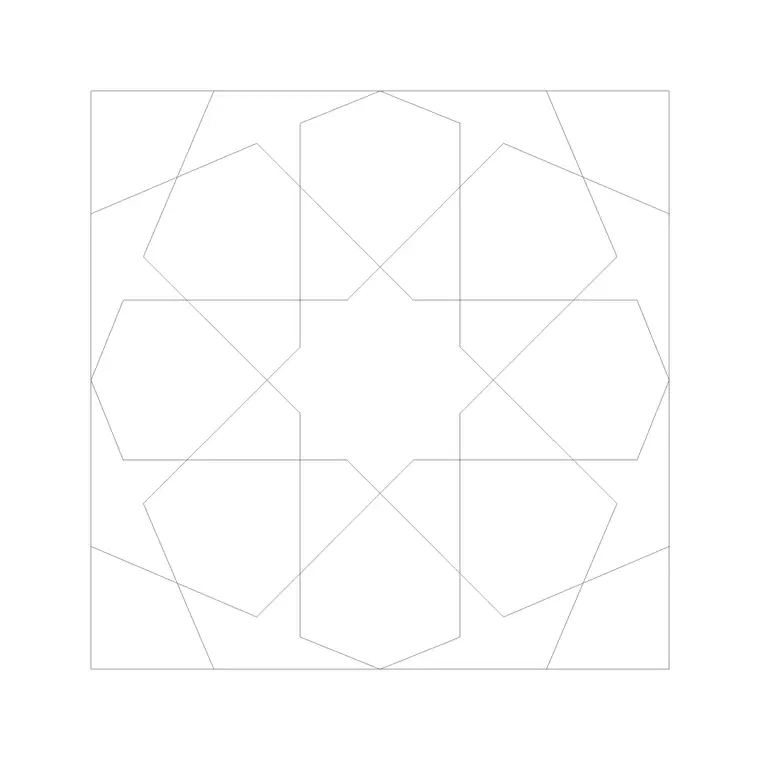
A paving pattern block is a single paving unit — a setting block, a flag, a brick paver — that you insert once and then repeat to fill an area. That makes it different from most blocks you place: the value is not in the one unit but in how you tile it. Inserting a paving block in AutoCAD is the first step; deciding whether to array real units or fall back to a hatch is the decision that actually shapes the drawing.
This guide covers inserting a paving pattern CAD block in AutoCAD and using it to fill a paved area, plus the important judgement call between a true array of units and a paving hatch. Paving blocks are plan-view by nature — you are looking down at the paved surface — and they are bread-and-butter for landscape, external works and site plans. We will use a single paving block as the worked example.
The craft here is matching the method to the drawing scale: a detail wants real units, a site plan wants a hatch. Insert the unit first, then choose how to multiply it.
Insert the single paving unit first
Start by placing one paving unit. Run INSERT, browse to the paving block DWG, and drop a single unit at the corner of the area you intend to pave, on a paving layer. The base point of the unit — usually a corner — is what you will register the rest of the pattern to, so place that first unit deliberately at a known setting-out point.
That first unit is the seed for everything that follows. Whether you array it into a grid, offset it into a bond, or use it just to size a hatch, getting the seed unit placed cleanly at the setting-out corner saves you re-working the whole field later.
Confirm units and unit size
These blocks are drawn full size in millimetres, so set insertion units to millimetres with UNITS before inserting. Paving relies on a known unit size plus a joint width, and the array spacing is built directly from that dimension, so the unit has to be at true scale for the pattern to set out correctly.
Check the seed unit against the paving size you expect. If a single paver lands metres across or shrinks to nothing, the units disagree — correct them before you build the field, because a wrong unit size multiplied across an array means re-tiling the whole area.
Array the unit into a grid or bond
For real units, use ARRAYRECT. Set the column spacing to the unit length plus the joint, and the row spacing to the unit width plus the joint, so each paver sits beside the last with a consistent joint gap, and run the array beyond the area to overshoot it. That gives a clean stack-bond grid of real paving units.
For a running bond, offset alternate rows by half a unit length to stagger the joints; for herringbone, build a small interlocking tile of rotated units and array that tile. The joint plus the offset is what gives each pattern its character, so set the spacing from the real unit-plus-joint dimension, not from the unit alone.
Trim the paving to the boundary
An array overshoots the paved area, so clip it. Draw the boundary of the paved area as a closed polyline, then trim the overhanging units to it, or use the boundary to hide the overspill. Part-units cut at the edge are realistic — real paving is cut at edges and obstacles — so a cut paver at the perimeter reads correctly rather than wrong.
Keep the setting-out logic in mind as you trim: paving is usually set out from a key edge or a building line, so the full units fall where they matter and the cuts land at the discreet edge. Trimming to a clean boundary is what turns an oversized array into a finished paved area.
When to use a hatch instead
For arrangement-scale drawings, skip the array and hatch the area. Real paving units number in the thousands across a large area and will bog the drawing down badly, whereas a hatch fills the whole area as a single lightweight object that updates instantly if the boundary changes. Run HATCH, pick a paving or brick pattern, set the scale so it reads at the right unit size, and pick the enclosed area.
The rule of thumb is scale and purpose: a paving detail at large scale wants real units you can count; a site plan at small scale wants a hatch that just communicates 'paved in this pattern'. Reserve the real-unit array for the details, and let a hatch carry the general arrangement plans.
Layer the paving and finish
Put the paving on a dedicated paving or external-works layer so it plots at the right lineweight and can be isolated from the building and the landscape planting. Keeping paving on its own layer also lets you swap patterns or freeze the paving for a clean site plan without disturbing anything else.
Finish by checking the setting-out: full units land where they should, the cuts sit at the edges, and the joints run consistently across the field. Whether you arrayed real units or used a hatch, a tidy, correctly set-out paving field is what makes the external works read as designed rather than approximated.
Free download
Browse the full library — DWG & DXF, no signup.
Questions
Frequently asked
Should I array paving blocks or use a hatch in AutoCAD?+
Use a real array of paving units for large-scale setting-out details where you need actual units, joints and cut blocks. Use a paving hatch for arrangement-scale site plans, where the paving just needs to read as a pattern — it is one lightweight object instead of thousands of blocks.
How do I make a running-bond paving pattern from a block?+
Array one row of units, then offset alternate rows by half a unit length to stagger the joints, and array that pair upward. The half-unit offset on alternate rows gives the brick-style running bond with broken vertical joints. For herringbone, array a small tile of rotated units instead.
Why is my drawing slow after paving an area?+
Arraying real paving units across a large area creates thousands of objects, which slows the drawing dramatically. For big areas use a paving hatch instead — a single object fills the whole area — and reserve real arrayed units for detail-scale drawings where you genuinely need to count them.
What units should a paving block be inserted at?+
Millimetres. The blocks are drawn full size in millimetres, and the array spacing is built from the unit size plus the joint width, so set insertion units to millimetres with the UNITS command before inserting or the pattern will not set out correctly.
Related downloads
Blocks for this guide
Popular blocks to download
Related categories
Related guides
How-to guide
How to Build a Personal CAD Block Library
How to build a personal CAD block library — folder structure, naming, WBLOCK, layer-0 discipline and tool palettes so you stop redrawing the same symbols.
How-to guide
How to Organize a CAD Block Library by Category
How to organize a CAD block library by category — a clean folder taxonomy, naming rules, thumbnails, and tool palettes so any block is two clicks away.
How-to guide
How to Add Attributes to a Block in AutoCAD
How to add attributes to a block in AutoCAD — use ATTDEF to define tags, build an attributed block, edit values, and extract a schedule from your drawing.