How-to guide · how to insert a door block in autocad
How to insert a door block in AutoCAD
By Saumyajit Maity · Published 6 Dec 2024 · Updated 25 Jan 2026
A door block carries two things at once: the leaf and the arc of its swing. Get both placed correctly and a floor plan instantly reads as a real, walkable space; get them wrong and clearances quietly fall apart. This guide walks through inserting a single-leaf door block in AutoCAD from download to a clean, dimensioned opening, with the hinge on the right side and the swing pointing the way you intend.
The workflow assumes the most common case — a hinged internal door dropped into a masonry or stud wall on a plan drawing — but the same INSERT logic applies to double doors, fire doors and external entrance sets. We'll lean on the door's natural insertion point (the hinge) so that mirroring and rotating behave predictably, and finish with the checks that separate a tidy drawing from a sloppy one.
Download a door block that matches the leaf width
Start by picking a door block sized close to the opening you need. Internal doors are commonly drawn at 600, 700, 800 and 900 mm leaf widths; external and accessible doors run wider, often 900 to 1000 mm. Grabbing a block already drawn near your target width means you place it at scale 1 and avoid distorting the leaf thickness when you rescale.
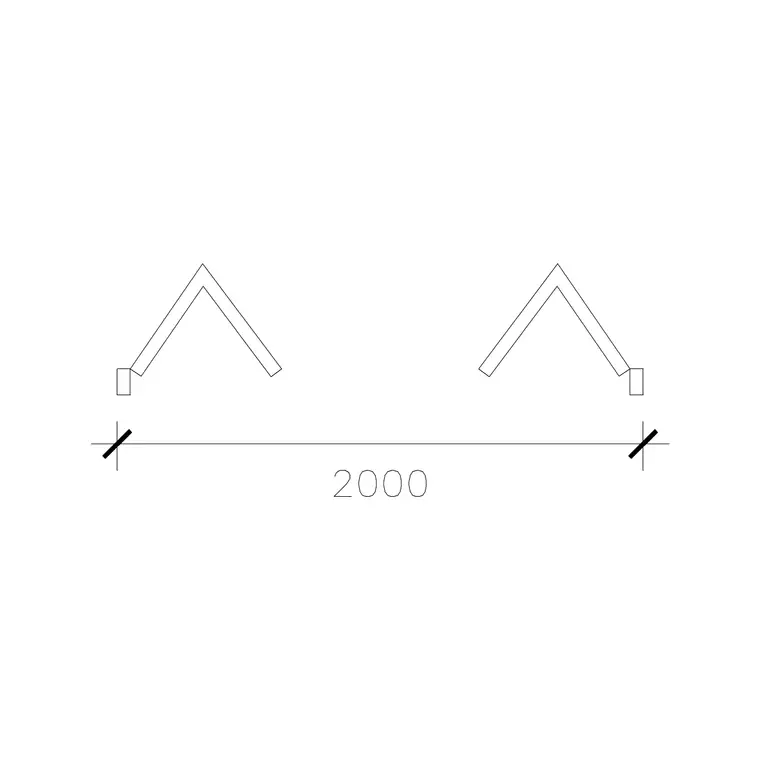
The doors category here covers single-leaf, double-leaf, sliding and pocket doors in plan and elevation. Save the DWG into a project library folder so it stays reusable across drawings, and note that the blocks are drawn full size in millimetres.
Cut the opening in the wall first
A door needs a hole to sit in. Before inserting, break the two wall lines where the opening goes: draw the jamb lines with OFFSET from a reference point, then TRIM or BREAK the wall faces so the opening is clear. If you're working with a wall built from a multiline or polyline, use the BREAK command at the two jamb positions.
Getting the opening exactly the leaf width plus the frame allowance (typically 40 to 60 mm total for an internal door frame) means the block drops in with no fiddling. If your office uses dynamic wall tools, those often cut the opening for you when the door is placed — but for a static block, cut first.
Confirm insertion units, then run INSERT
Type UNITS and check that the insertion scale reads Millimeters so AutoCAD rescales the block automatically if its units differ from the drawing's. This single setting prevents the door arriving microscopic or enormous.
Now type INSERT (or I) to open the Blocks palette, browse to the door DWG, and tick 'Specify On-screen' for the insertion point and rotation. Most door blocks are drawn with their base point at the hinge — the corner where the leaf meets the frame — because that is the natural pivot for placing and flipping the door. Click that hinge point onto the jamb where the door is hung.
Rotate and mirror to set the swing
With the hinge anchored, rotation aims the leaf into the room. If 'Specify On-screen' for rotation was ticked, you can spin the door live and click when the swing points the right way; otherwise place it and run ROTATE around the hinge point.
Handedness — which side the hinge sits on — is set with MIRROR. Select the door, mirror it about the centreline of the opening, and the hinge flips to the opposite jamb. A quick rule: the door should swing into the room, away from circulation and clear of other door arcs, and an accessible door usually needs the leaf to open against a wall so a wheelchair user isn't trapped behind it. Walk the swing in your head before you commit.
Put it on a doors layer and tag it
Move the inserted door onto a dedicated layer — A-DOOR or similar — so the leaf and swing arc carry their own colour and lineweight, separate from the walls. A doors layer lets you freeze openings for a structural plan or thaw them for the architectural set without touching geometry.
If the block has an attribute for a door reference (D01, D02…), AutoCAD prompts for it on insertion; filling it in lets you extract a door schedule straight from the drawing later. Even without attributes, keeping doors as clean block references means a later edit to the definition — say, thinning the leaf line — updates every door at once.
Pitfalls that trip people up
Three mistakes recur. First, inserting the door before cutting the opening, which leaves the leaf overlapping solid wall and the swing arc buried in hatch. Cut the hole first. Second, snapping the hinge to the wrong jamb so the door clashes with a light switch, a second door arc or the room's main circulation — always picture the swing in use, not just on paper. Third, leaving doors on layer 0 or on the wall layer, which makes them impossible to isolate later.
A subtler one is scale creep: if you stretch an 800 mm door block to 900 mm by dragging a corner grip, you distort the frame and leaf thickness. Instead, download a block at the right width, or use a dynamic door block and pull its width grip, which keeps the frame correct while only the leaf and swing lengthen.
Free download
Browse the full library — DWG & DXF, no signup.
Questions
Frequently asked
Where is the insertion point on a door block?+
Most door blocks are drawn with the base point at the hinge — the corner where the leaf meets the frame on the hinge side. That makes the hinge the pivot, so rotating sets the swing direction and mirroring about the opening flips the handing.
Do I cut the wall opening before or after inserting the door?+
Cut the opening first for a static block. Use OFFSET to set the jamb positions, then TRIM or BREAK the wall faces. Drop the door's hinge point onto a jamb. Some dynamic wall and door tools cut the opening automatically as you place the door.
How do I change which way a door swings?+
Use MIRROR about the centreline of the opening to flip the hinge to the other jamb (the handing), and ROTATE around the hinge to point the leaf into a different room. Check the swing clears other doors, switches and circulation before you finalise.
What door widths should I design around?+
Internal doors are commonly 600, 700, 800 and 900 mm leaf widths; external and accessible doors run 900 to 1000 mm, with the wider sizes needed for wheelchair access. Frame allowance adds roughly 40 to 60 mm to the structural opening for an internal door.
Related downloads
Blocks for this guide

Popular blocks to download
Related categories
Related guides
How-to guide
How to Create a Block in AutoCAD (BLOCK & WBLOCK)
Learn how to create a block in AutoCAD with the BLOCK and WBLOCK commands — pick a base point, choose objects, set units, and save a reusable DWG block library.
How-to guide
How to Convert DWG to DXF in AutoCAD
Convert a DWG to DXF in AutoCAD with SAVEAS — choose the right DXF version, set precision, and export clean geometry for laser cutters, CNC and other CAD apps.
How-to guide
How to Convert DXF to DWG (3 Ways)
Convert a DXF to DWG three ways — in AutoCAD with SAVEAS, free with the ODA File Converter, or in DraftSight. Pick the right DWG version and keep layers intact.