How-to guide · how to insert a column block in autocad
How to insert a column block in AutoCAD
By Saumyajit Maity · Published 3 Jan 2022 · Updated 8 Mar 2026
A column is a structural block, and that gives it a discipline freestanding furniture never has: it belongs on the grid. Whether it is a round RCC column, a square concrete column or a steel section, a column block is placed at a grid intersection, aligned to the structural setting-out, and repeated across the frame. Inserting a column in AutoCAD is therefore as much about snapping to the grid as it is about the block itself.
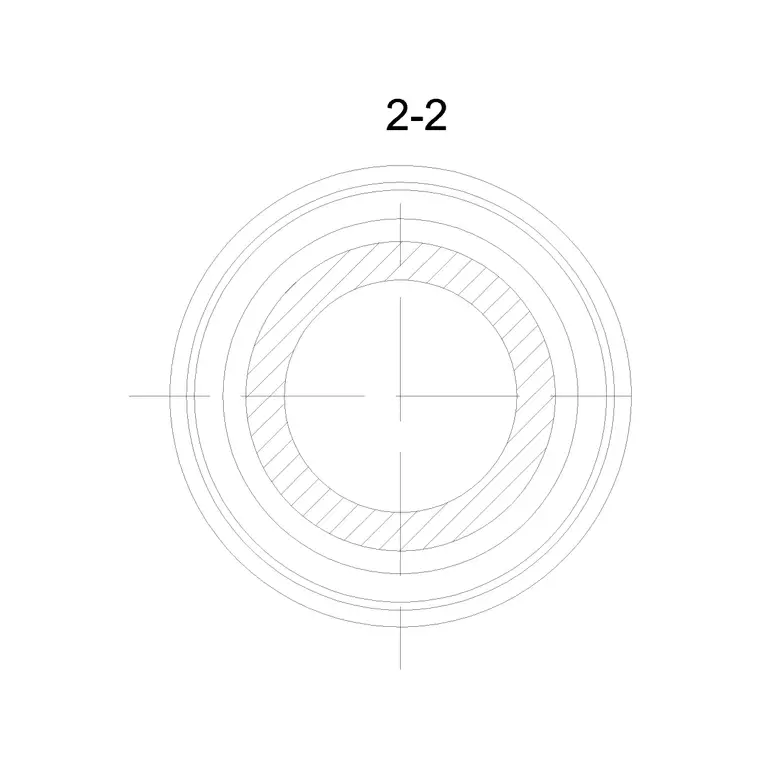
This guide covers inserting a column CAD block in AutoCAD and placing it accurately on the structural grid. Columns are drawn in plan for the structural and architectural setting-out — the footprint at the grid node — and sometimes in section or elevation for details. We will use a round column plan block as the worked example, but the grid logic applies equally to square columns and steel sections.
Columns are load-bearing, so their position is not a design preference but a structural fact. The grid is the boss, and the column follows it — keep that order in mind and the placement becomes straightforward.
Choose the column type and view
Column blocks come as round, square and rectangular concrete columns, and as steel sections, in a range of sizes. Pick the shape and size your structural scheme specifies — a round column for a round column, at the diameter the engineer has set — rather than substituting a generic box. The column size is a structural decision recorded on the grid, not a drawing convenience.
Use the plan block for setting-out, where you place the footprint at the grid node, and a section or elevation block where a detail needs to show the column through its height. Most column placement is plan work tied to the grid.
Set units to millimetres
These blocks are drawn full size in millimetres, so set insertion units to millimetres with UNITS before inserting. Column sizes are exact structural dimensions, so the block must land at true size to register correctly on the grid and to read accurately against the slab and beams around it.
Verify the first column against its stated size — a round column should read at its real diameter. A column that arrives at the wrong scale will not sit correctly at the grid spacing and will misrepresent the structure, so correct the units immediately if the size looks off.
Snap the column to the grid intersection
The defining move for a column is snapping it to a grid node. Run INSERT, browse to the column DWG, and use an OSNAP — intersection or node — to place the column's centre exactly on the structural grid intersection. The insertion base point is usually the column centre for precisely this reason, so the centre lands on the grid line crossing.
Do not eyeball it. A column that is even slightly off-grid throws out the setting-out, the beam connections and every dimension that references the grid. Snap the centre to the node so the column is locked to the structure from the moment it is placed.
Align orientation for non-round columns
A round column has no orientation to worry about — it reads the same at any rotation. A square, rectangular or steel column does: its faces must align to the grid and to the beams framing into it. Use ROTATE so the column's strong axis and faces sit the way the structure requires, parallel to the grid lines or oriented to carry the spanning members.
Get the orientation right at the first column and carry it consistently across the grid. A rectangular column turned the wrong way changes which direction it is strong in, so for non-round columns the rotation is a structural statement, not a cosmetic one.
Array columns across the grid
Once one column sits on its node, populate the grid. Because columns occur at grid intersections, a rectangular ARRAY along the grid spacing places them efficiently — set the column and row spacing to the grid bay dimensions so each copy lands on the next intersection. Where the grid is irregular, place columns node by node instead, snapping each to its intersection.
Not every grid intersection necessarily carries a column, so after arraying, delete the columns at nodes that the structural scheme leaves open and add any columns that sit off the regular grid. The grid drives the array; the structural design decides which nodes are actually built.
Layer the columns and finish
Put columns on a dedicated structural or column layer, distinct from walls and architecture, so the structural setting-out can be plotted on its own and so the columns carry the right lineweight on the architectural plan. Columns often need to show through every floor, so keeping them on a clear, consistent layer makes coordinating the stack across levels far easier.
Finish by confirming every column sits exactly on its grid node, the sizes match the structural schedule, and non-round columns are oriented correctly. Because the column grid is the backbone the whole building hangs from, this final setting-out check is one of the most important you will run.
Free download
Browse the full library — DWG & DXF, no signup.
Questions
Frequently asked
How do I place a column on the structural grid in AutoCAD?+
Insert the column with its base point at the column centre and use an OSNAP — intersection or node — to snap that centre exactly onto the structural grid intersection. Never eyeball it; an off-grid column throws out the setting-out and every dimension that references the grid.
How do I array columns across a grid?+
Place one column on its node, then use a rectangular ARRAY with the column and row spacing set to the grid bay dimensions so each copy lands on the next intersection. For irregular grids, place columns node by node. Then delete columns at any nodes the structure leaves open.
Does column orientation matter when inserting the block?+
Not for a round column, which reads the same at any rotation. For square, rectangular or steel columns it matters: rotate the block so the faces and strong axis align to the grid and the beams framing into it, because the orientation determines which way the column is strong.
What units should a column block be inserted at?+
Millimetres. The blocks are drawn full size in millimetres and column sizes are exact structural dimensions, so set insertion units to millimetres with the UNITS command before inserting or the column will not sit correctly at the grid spacing.
Related downloads
Blocks for this guide
Popular blocks to download
Related categories
Related guides
How-to guide
How to Build a Personal CAD Block Library
How to build a personal CAD block library — folder structure, naming, WBLOCK, layer-0 discipline and tool palettes so you stop redrawing the same symbols.
How-to guide
How to Organize a CAD Block Library by Category
How to organize a CAD block library by category — a clean folder taxonomy, naming rules, thumbnails, and tool palettes so any block is two clicks away.
How-to guide
How to Add Attributes to a Block in AutoCAD
How to add attributes to a block in AutoCAD — use ATTDEF to define tags, build an attributed block, edit values, and extract a schedule from your drawing.